Overview
This section covers best practices for adding alt text and ensuring the accessibility of images in Outlook emails.
Alt text stands for Alternative text. It serves three purposes:
- Enables screen readers to convey image meaning to users with visual impairments.
- Displays in place of an image if it fails to load.
- Helps users understand content.
Does My Image Need Alt Text?
To decide if an image needs alt text, ask yourself:
- If I removed this image, what text would I add instead?
- What is the purpose or function of this image?
If the image serves no purpose or wouldn’t change the meaning of the document if removed, mark it as decorative.
Click the button to learn how to write alt text.
Add Alt Text in Outlook
Images that convey content or function need alt text so screen readers can describe them to users with visual impairments.
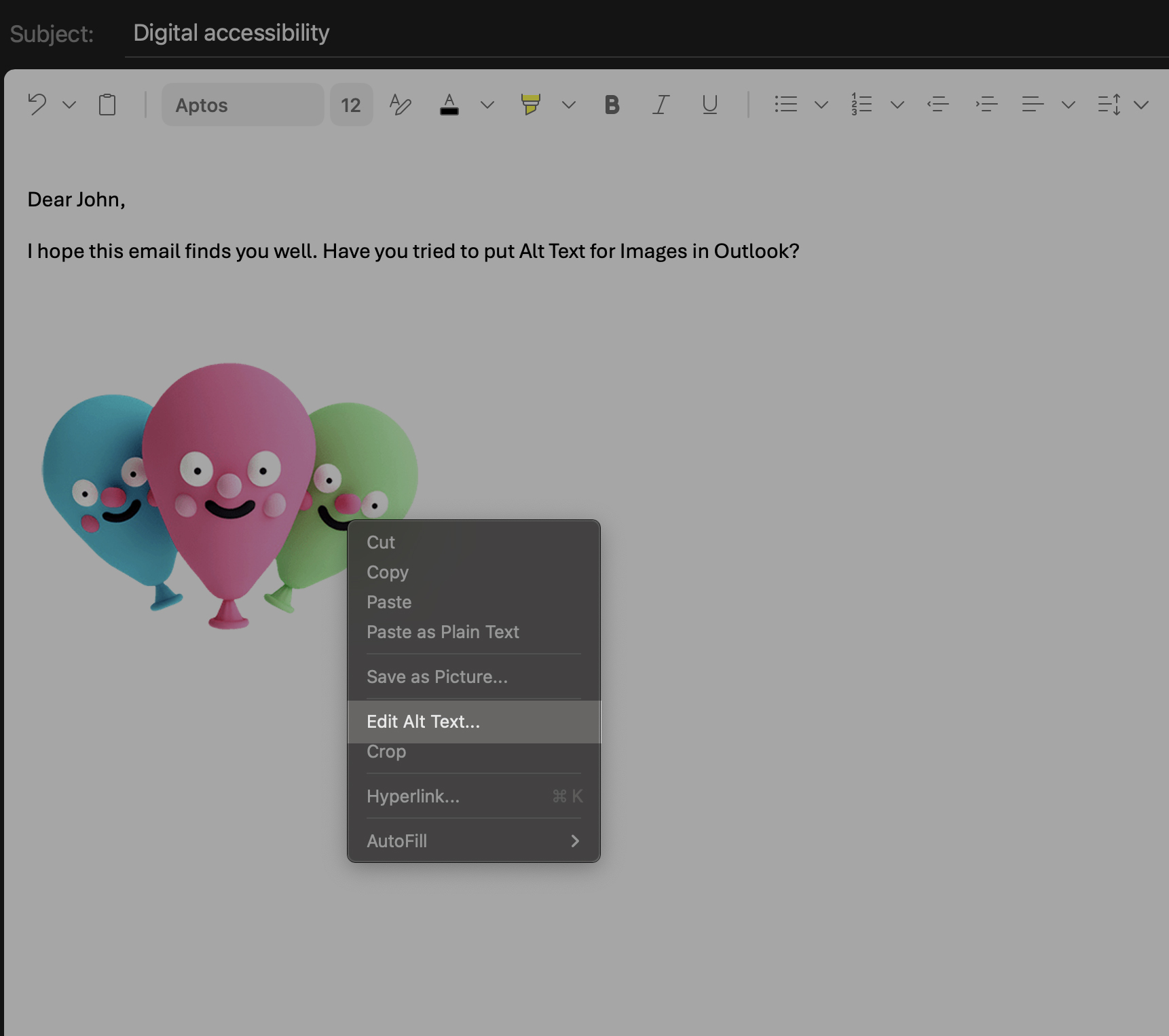
For a Mac
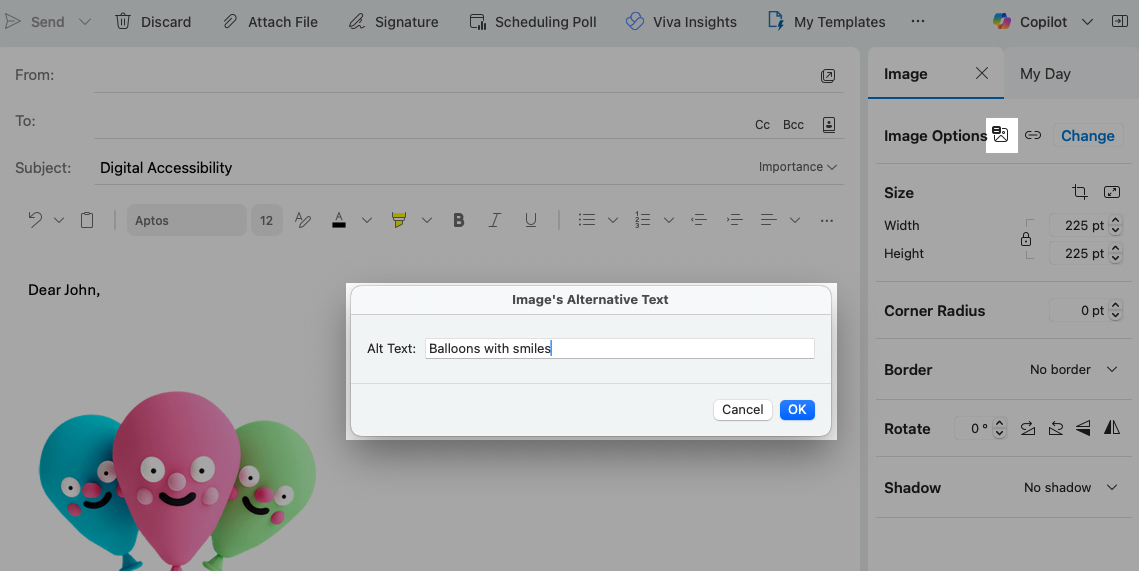
- A window will appear on the right side of your email.
- Click the Picture with lines.
- A popup will appear where you can add the image’s alt text. If the image is decorative, leave the alt text field blank.
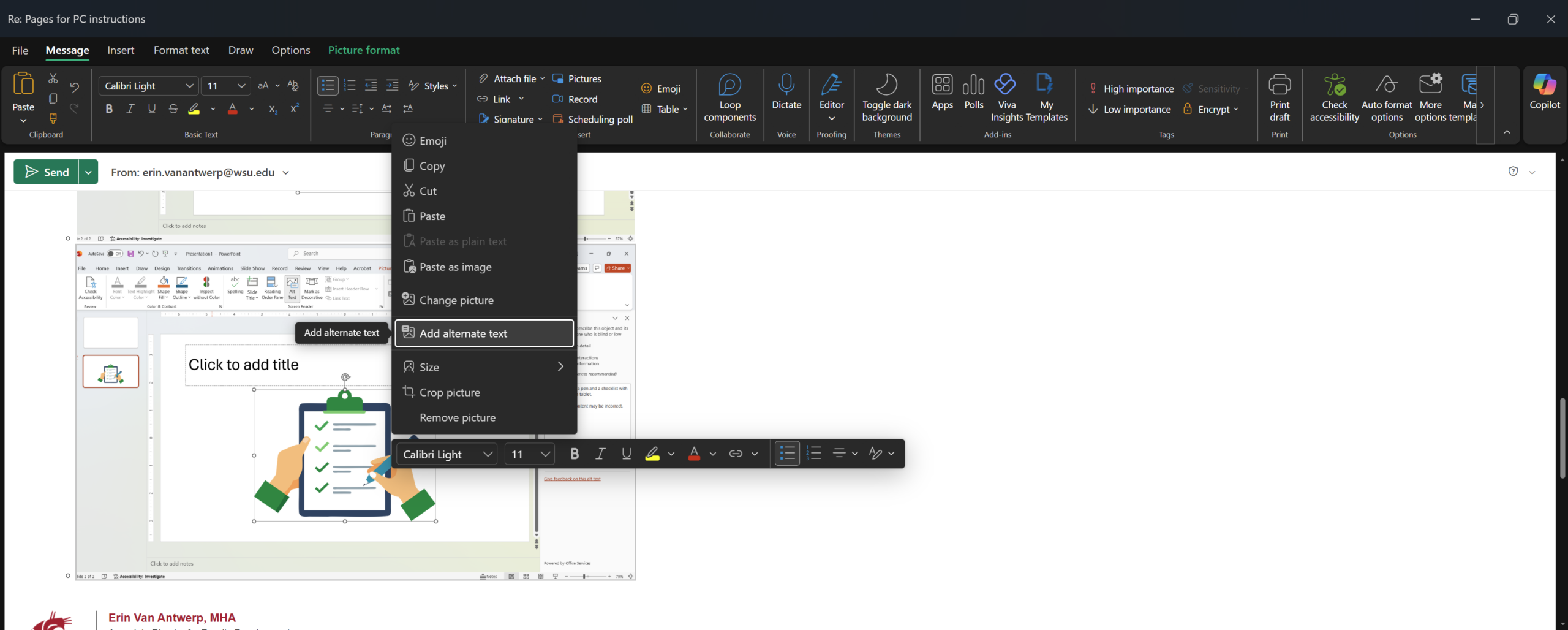
For Windows
- Right-click the image and a popup menu will appear.
- Select Add alternate text.
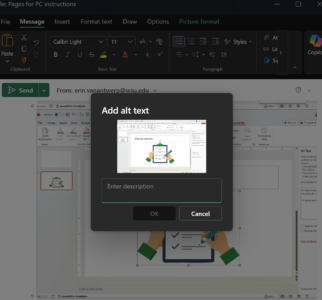
- A popup will appear where you can add the image’s alt text. If the image is decorative, leave the alt text field blank.
Best Practices
- Keep the alternative text short (less than 150 characters) and use proper punctuation.
- Adjust alternative text so it is meaningful within the context of the content the image is used with.
- Use visible text such as a caption for information meant for everyone, e.g., image copyright/attribution.
- Do not begin the alternative text with phrases such as image of, photo of, or graphic of as assistive technology automatically announces images.
- Do not repeat information that is already provided in nearby text.
- Do not use Square or Tight, or the image will be skipped by screen readers.
Need assistance?
Contact the College of Medicine Digital Accessibility Team if you have questions or need one-on-one support or additional training.
Contact the Digital Accessibility Team