PDF accessibility includes structural tagging, searchable text, and logical reading order, as well as headings, lists, links, and alternative text. Making a PDF accessible can be challenging and time-consuming, so we recommend avoiding the use of PDFs as your fully accessible document, if possible.
- Limitations of PDFs
- Appropriate Use of PDFs
- Difficult to Update: PDFs are time-consuming to make accessible, and any edits—even small ones—must first be completed in the source document. Then each time a new PDF is created, you must reapply the accessibility settings in Acrobat Pro.
- Not Mobile Friendly: PDFs don’t adjust to different screen sizes, so users often need to zoom and scroll extensively, which is difficult on mobile devices.
- Challenging User Experience: PDFs often lack intuitive navigation features and interactivity, such as clickable tables of content, menus, or robust search tools. This makes longer documents harder to navigate compared to webpages.
- Legal or Compliance Documents: When precise formatting, secure delivery, and an unalterable record are required.
- Official Forms: When an online form is not feasible or when a fixed layout is necessary for signatures or standardized processing.
- Print-Ready Materials: When documents must be printed in an exact, consistent format across all users and devices.
When a PDF Is Necessary
Ensure your source file (PowerPoint or Word ) is fully accessible before converting it to a PDF . Many accessibility features will carry over into the PDF , but you still need to review and make additional adjustments for the PDF to meet accessibility requirements.
Create a source file (PowerPoint or Word ) that meets all accessibility requirements. Then, create a PDF that may not be fully accessible. If someone needs an accessible document, you have the source file ready for them.
How to Use the Adobe Acrobat Accessibility Checker
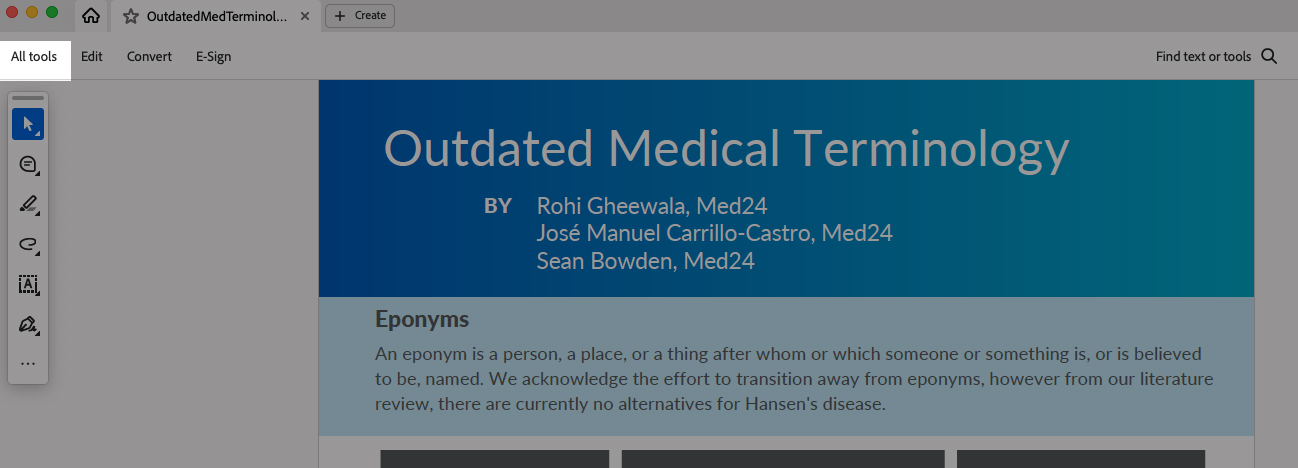
- Open your PDF in Acrobat Pro and select All Tools.
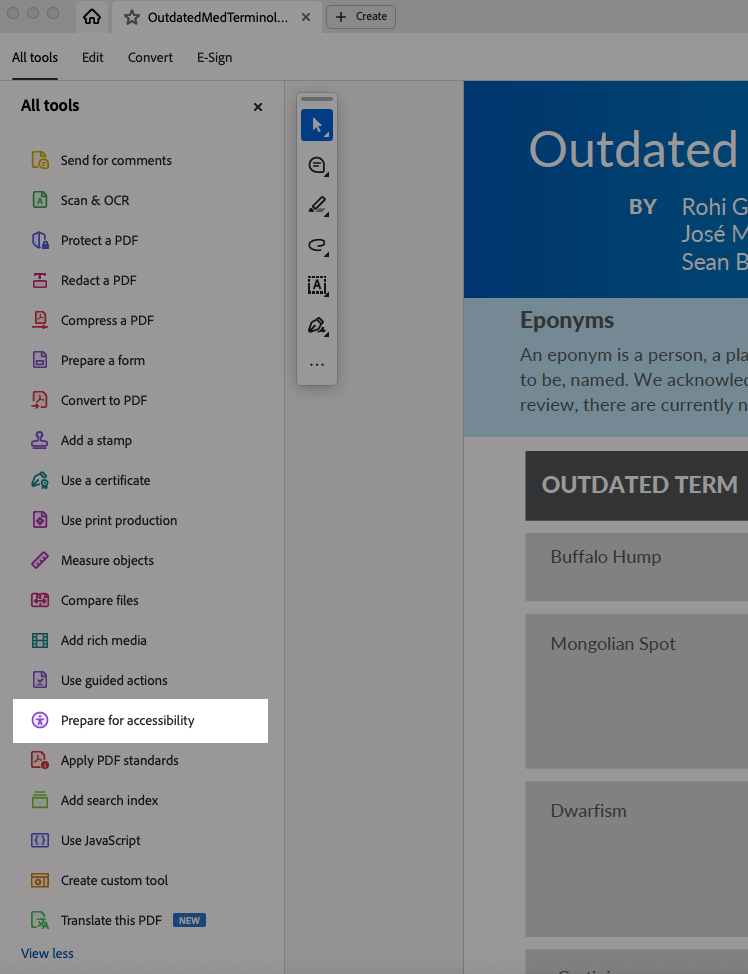
- Now choose Prepare for Accessibility. You may need to tap the View more button and scroll down. Click Prepare for Accessibility.
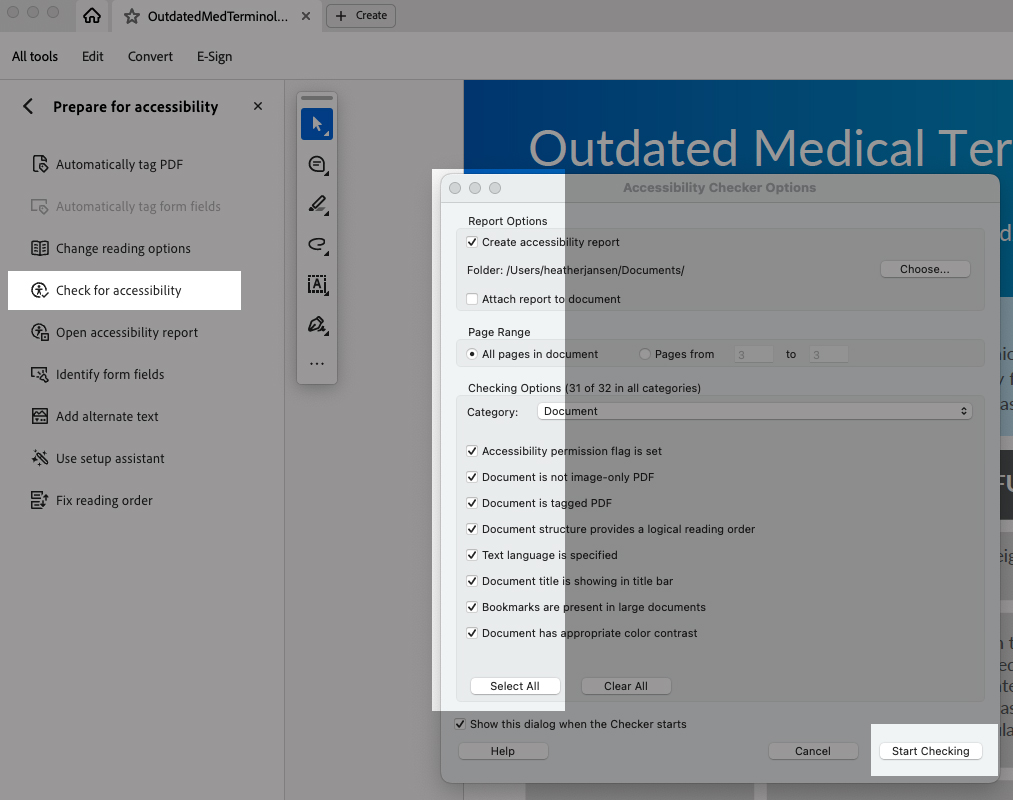
- Now click Check for Accessibility to open the dialogue box. In the dialog box, make sure that all options are checked to ensure a full audit is done on your document. Click Start Checking.
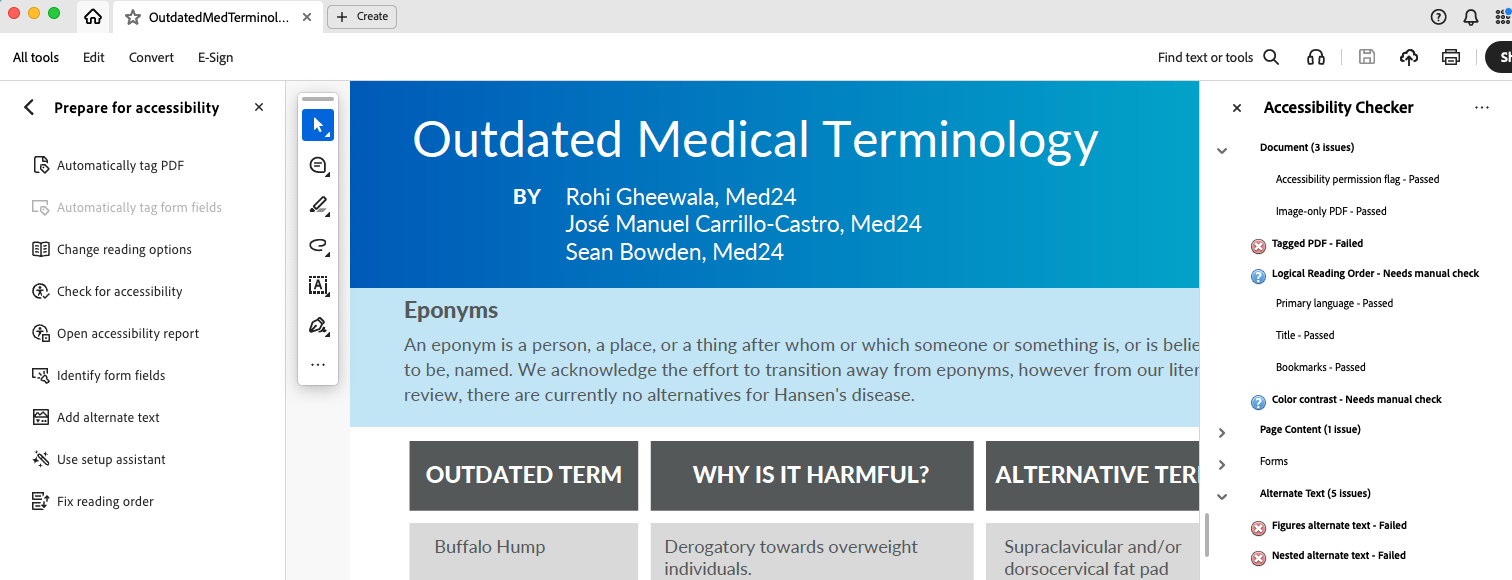
- After Acrobat Pro reviews your document, the Accessibility Checker panel appears on the right, which lists the issues, which are categorized as Passed, Failed, or Needs manual check.
Best Practices
- We recommend that you avoid PDFs as your main accessible document (because of the time and expertise needed to make them accessible).
- If you need to use a PDF , please be sure to have an accessible version of the document (PowerPoint or Word ), too.
- Make sure your PDF has a logical reading order. PDFs can display content in a different order than intended. Review and adjust the reading order, so it logically follows your intended flow of information.
- Tag the PDF correctly. Tags define the document’s structure (headings, paragraphs, lists, etc). These are essential for accessibility. Adobe Acrobat Pro allows you to view and edit tags.
- Do not fix the accessibility issues in the PDF without fixing the accessibility issues in the source document (PowerPoint , Word , or InDesign). Then export to PDF again and use the Acrobat accessibility checker to fix the reading ordering and tags in the PDF .
Resources
- WSU: Creating an accessible PDF .
- Adobe: Creating accessible PDFs .
- Adobe Acrobat Accessibility series overview.
- Section508.gov Video: How to Test and Remediate PDFs for Accessibility Using Adobe Acrobat.
- How to use the PowerPoint Accessibility Checker.
- How to use the Word Accessibility Checker.
- Make your PowerPoint document accessible.
- Make your Word documents accessible.
Need assistance?
Contact the College of Medicine Digital Accessibility Team if you have questions or need one-on-one support or additional training.
Contact the Digital Accessibility Team