Tables in PowerPoint

Table of Contents

Overview

Tables play a crucial role in presenting structured data information. When tables are not formatted correctly, they pose challenges for screen reader users and hinder the accessibility of the table’s content. 

PowerPoint Templates

Take the guesswork out of whether your titles are accessible or not. Use the templates below with list styles that are already digitally accessible.

Download the General PowerPoint Template

Download this accessible PowerPoint template. Please use the tools available in PowerPoint to create consistent and digitally accessible materials. Follow the best practices shown in the video below.

Download the Teaching PowerPoint Templates

If you are teaching at the College of Medicine, please download this accessible PowerPoint template that is specifically set up for teaching presentations. Please use the tools available in PowerPoint to create consistent and digitally accessible materials. Follow the best practices shown in the video below.

Use Tables in PowerPoint

When using a table in PowerPoint, define its table headers, provide alt text or a table summary, and do not use merged or split cells to improve both the accessibility and usability for everyone.

Define Header Rows

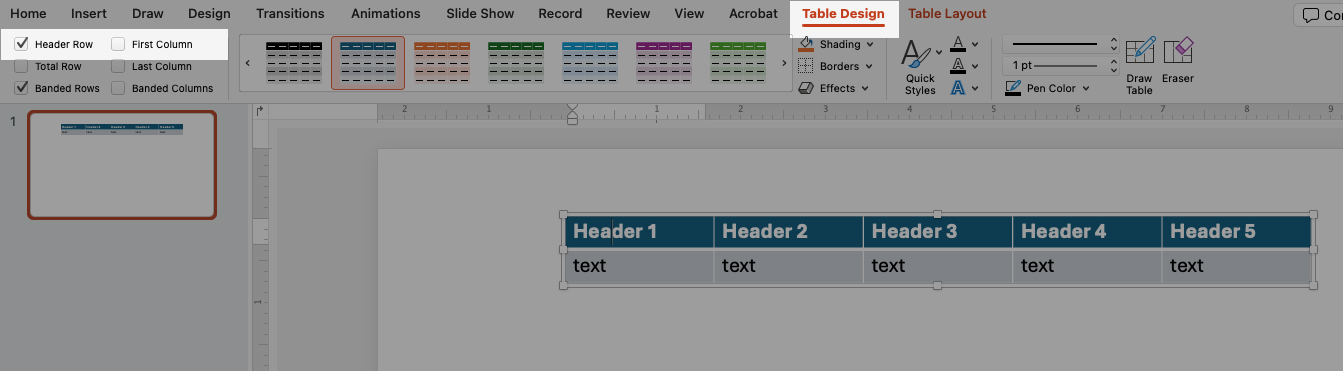
Highlighted areas shows location of Table Design tab and Header Row toggles
Tap to enlarge
  1. Insert your Table. Then click inside the table to open the Table Design tab.
  2. In the Table Design Tab:
  • Check the Header Row option if your table has a column header. 
  • Check the First Column option if your table has a row header.
  • Check both options if your table as row and column headers.

Add Alt Text

Tap to enlarge
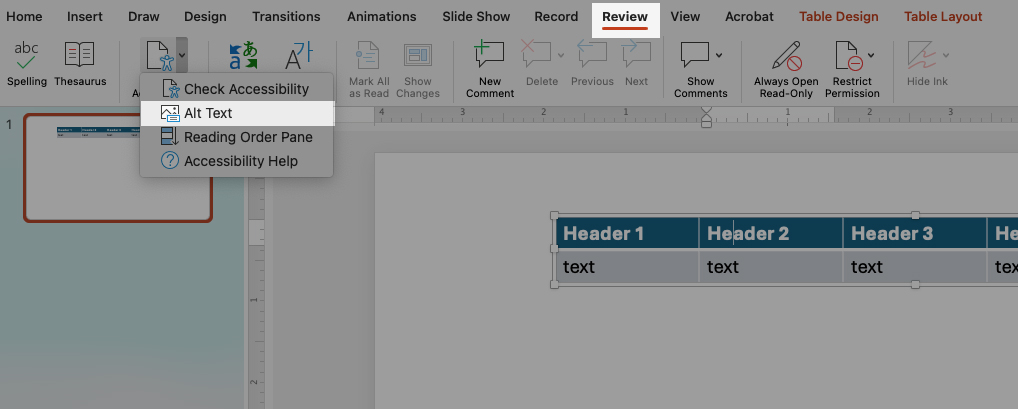
  1. Click Review and then Alt text.
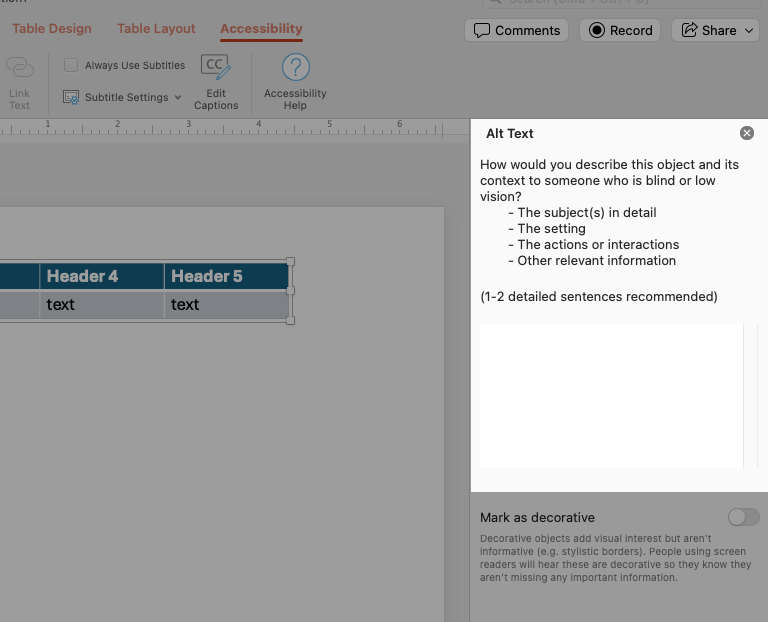
Highlighted area shows where and how to include alt text for your table.
Tap to enlarge
  1. Add a clear and concise description of the table.

Best Practices

FAQ

Screen reader users move through tables one cell at a time, both horizontally and vertically. When table headers are set up correctly, the screen reader automatically announces the related row and column headers as the user moves through the table. 
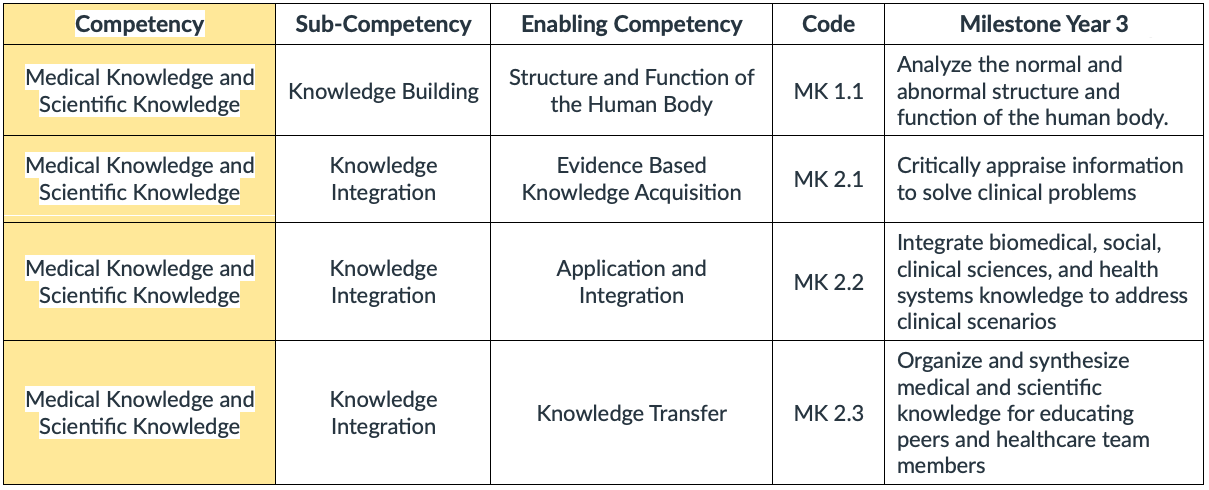
For example, as a user navigates across the first row of data, a screen reader might say:

  • “Row 2: Medical and Scientific Knowledge; Competency. Column 2: Knowledge Building; Subcompetency. Column 3: Structure and Function of the Human Body; Enabling Competency…” 

Avoid merging cells. While merged cells may look cleaner visually, they interfere with how screen readers identify and announce headers, which can make tables confusing or unusable. Use simple, consistent rows and columns instead. 

Avoid using tables for visual layout or to create columns of text. Use tables only when data needs to be presented in a table. 

Need assistance?

Contact the Digital Accessibility Team if you have questions, need one-on-one support, or need additional training.

Contact the Digital Accessibility Team

Keep Learning