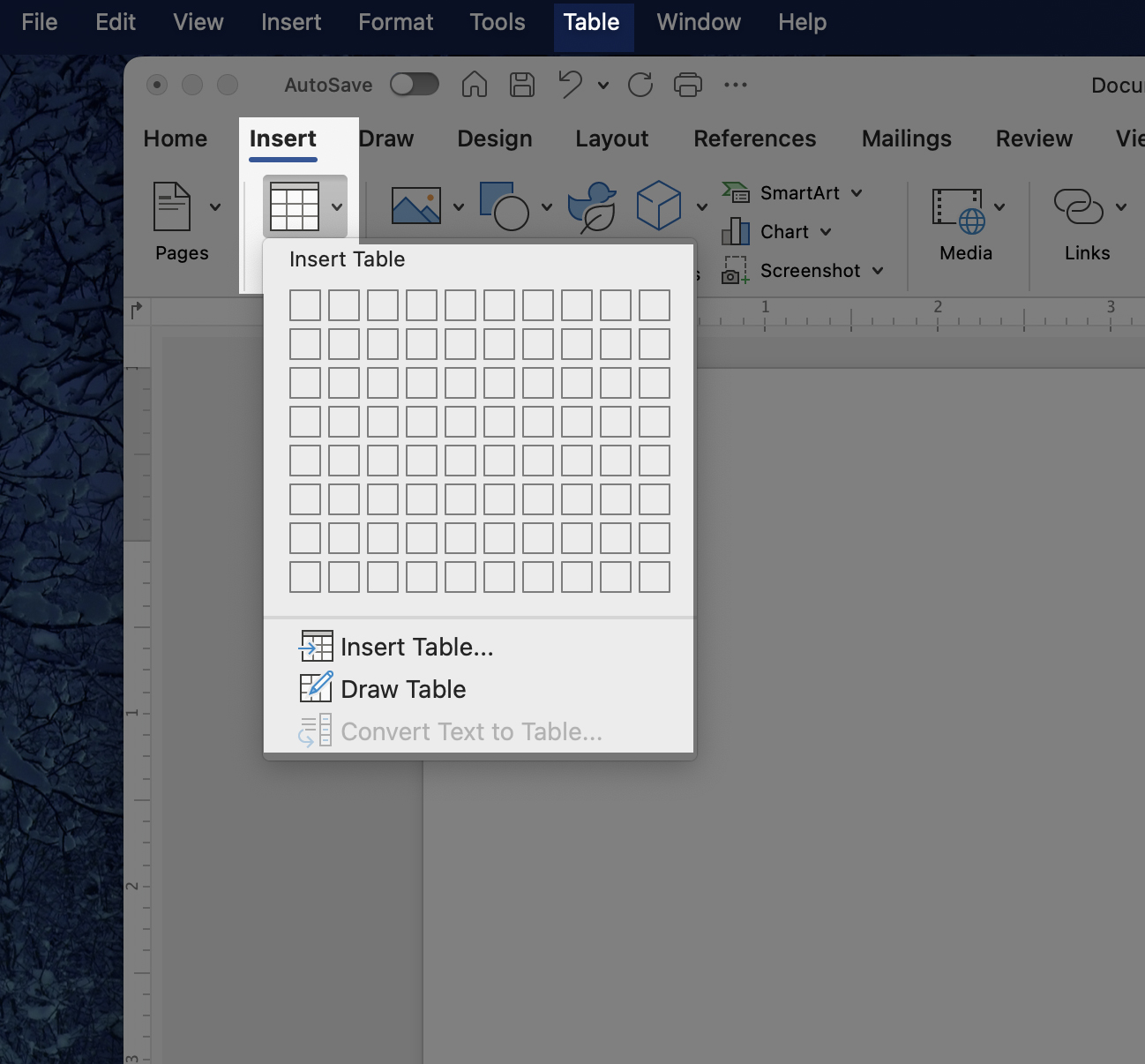
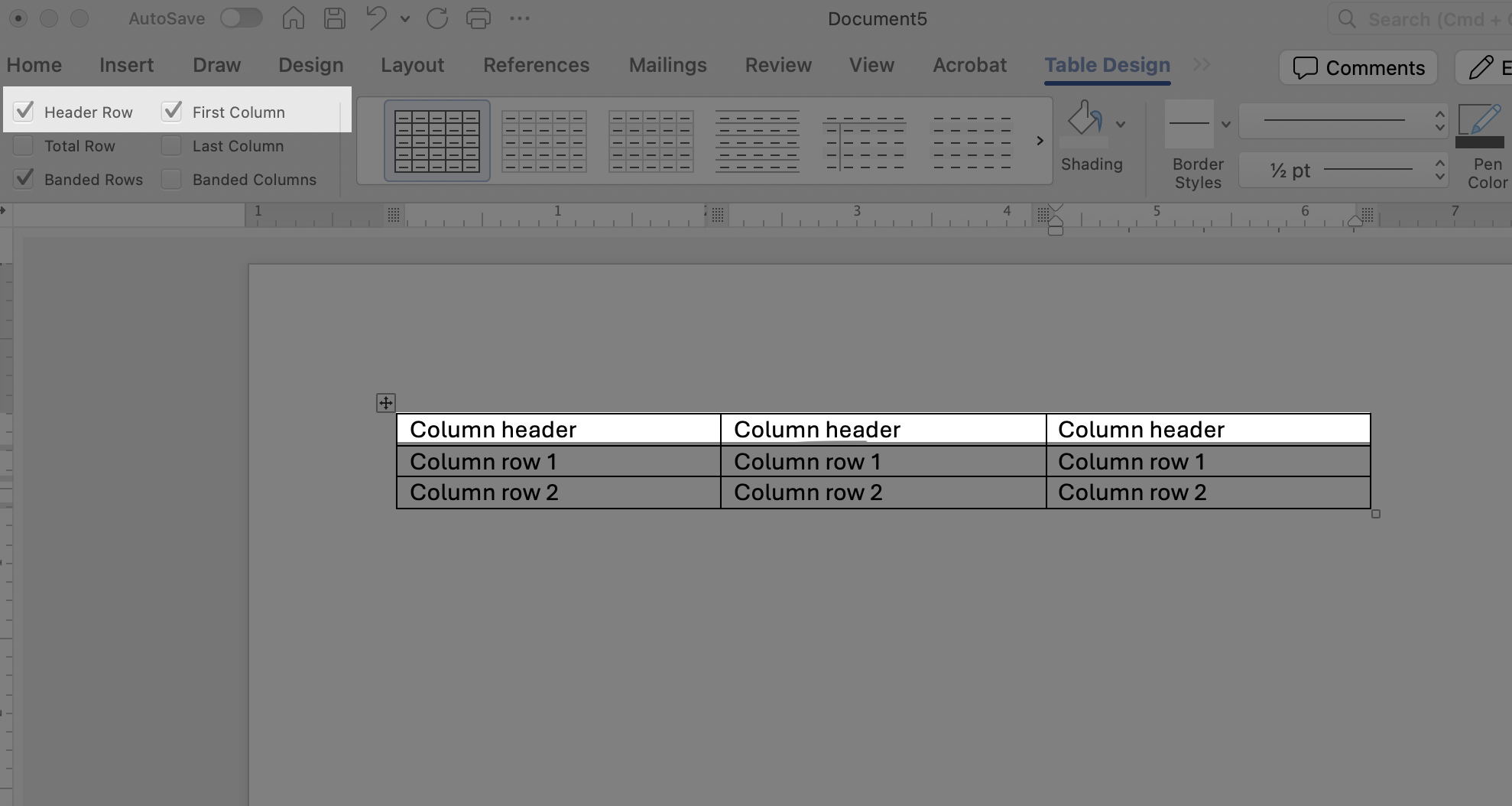
Overview
Tables play a crucial role in presenting structured data information. When tables are not formatted correctly, they pose challenges for screen reader users and hinder the accessibility of the table’s content.
Word Template
Take the guesswork out of whether your headings are accessible or not. Use the template below with Heading styles, which are already digitally accessible.
Download this accessible Word template. Please use the tools available in Word to create consistent and digitally accessible materials.
Use Tables in Word
When using a table for data, identifying its table headers, and providing a table summary, or description improves both the accessibility and usability for all people.
For accessibility, use simple tables that includes one header row and/or one header column.
Best Practices
- Use the WSU Word template, which has accessibility built in.
- Create appropriate table headers (rows and/or columns) with application formatting tools.
- Use simple tables (up to one header row and one header column) rather than complex tables (multiple header rows and header columns, including merged and split cells).
- Use 0, no value, not applicable, left blank, or other appropriate text rather than empty header cells to avoid confusion.
- Do not use a layout table to visually align or design your content.
- Do not forget to add a caption or title/description that identifies the name or purpose of the table.
FAQ
Screen reader users move through tables one cell at a time, both horizontally and vertically. When table headers are set up correctly, the screen reader automatically announces the related row and column headers as the user moves through the table.
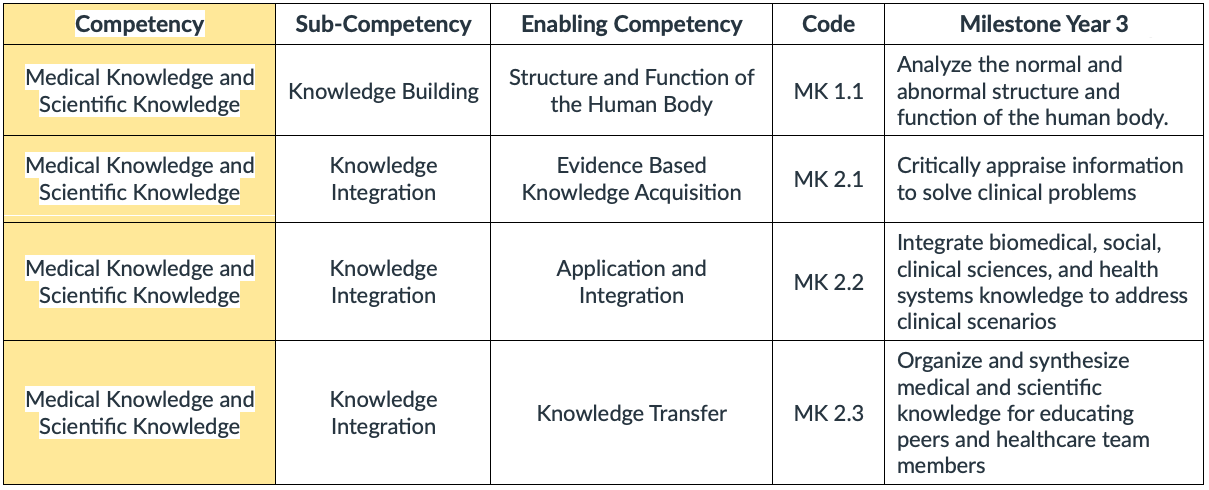
In this example, as a user navigates across the first row of data, a screen reader might say:
- “Row 2: Medical and Scientific Knowledge; Competency. Column 2: Knowledge Building; Subcompetency. Column 3: Structure and Function of the Human Body; Enabling Competency . . .”
Avoid merging cells. While merged cells may look cleaner visually, they interfere with how screen readers identify and announce headers, which can make tables confusing or unusable. Use simple, consistent rows and columns instead.
Avoid using tables for visual layout or to create columns of text.
- Use styles and formatting tools to design your layout. This is already set up in the Word template.
- Use tables only when data needs to be presented in a table.
Resources
Need assistance?
Contact the College of Medicine Digital Accessibility Team if you have questions or need one-on-one support or additional training.
Contact the Digital Accessibility Team