Power BI reports are excellent for sharing complex data stories in an interactive, secure setting. Whether you have data to share with others, or you have been provided a report to view, this page highlights what you can expect with your reports.
Access the Basic Student Dashboard
Students receive one report for each year of the curriculum. By the end of the 4-year program, students will have a set of Power BI reports that follow this basic structure.
This report displays feedback from MED FMS, LMH, and SCHLR courses in the first two years. Typically, this is one longitudinal dashboard unless major updates in data views are made between Year 1 and Year 2.
FMS 513 is a transitionary course at the end of Year 2 that prepares students for Year 3. A transitionary dashboard introduces students to a preview of data views they will see in their Clerkship Dashboard.
This Year 3 Dashboard displays feedback collected in the Longitudinal Integrated Clerkship (LIC). Students can monitor their past and upcoming clinical experiences, completion of course requirements, and skills growth through this report.
This report displays feedback on clinical assessments, assignments, exams, and grades in their 2-week and 4-week rotations.
The Year 4 Exit OSCE is programmatic and does not fit under a particular MED CLIN Course. Feedback on the Year 4 OSCE is provided separately in this private report for the student.
Report Development
For those interested in using Power BI as a developer, reports may be created through the online web portal (limited capabilities), or through the desktop app (full capabilities). In report development, connect to data sources (excel files, APIs, other dataflows, etc.), transform your data, and design your report with text, visuals, and other interactive features.
Keep in mind: Unlike other Office 365 apps, multiple people may not edit a report at one time without employing add-on tools.
When you are ready to share a report, publish it to a Power BI workspace. By default, everyone has access to a personal workspace called My Workspace. Create Team workspaces by sending a request to medicine.tech@wsu.edu. Request a team workspace, if you have reports that are maintained or utilized consistently by a group.
Publishing reports into your personal workspace versus a team workspace is similar to sharing files from OneDrive versus Sharepoint.
Best practice is to use a shared space for ongoing development or formal sharing.
Edit your reports online or in the desktop app after they are published.
Basic Sharing
Power BI reports can be shared with anyone within the WSU directory. Basic sharing of reports is like other Microsoft Apps. Once your report is published, look for the Share button at the top of your report to share with people who have existing access (may include those who have workspace access or other pre-existing access), specific people, or people in the organization.
Advanced Sharing and Security
Power BI also supports advanced security measures on reports so your audience may only see a select portion of the data (e.g., A report shared with multiple course directors can be set up so each course director only sees their own courses.)
Further information is available at Power BI documentation, or contact the Data Strategy Team for assistance.
Reports can be edited online or in the desktop app after they have been published.
HOW?
Sharing via People in the organization makes your report discoverable (without the link) to users across WSU. Do not share sensitive information using this method.
View Published Reports
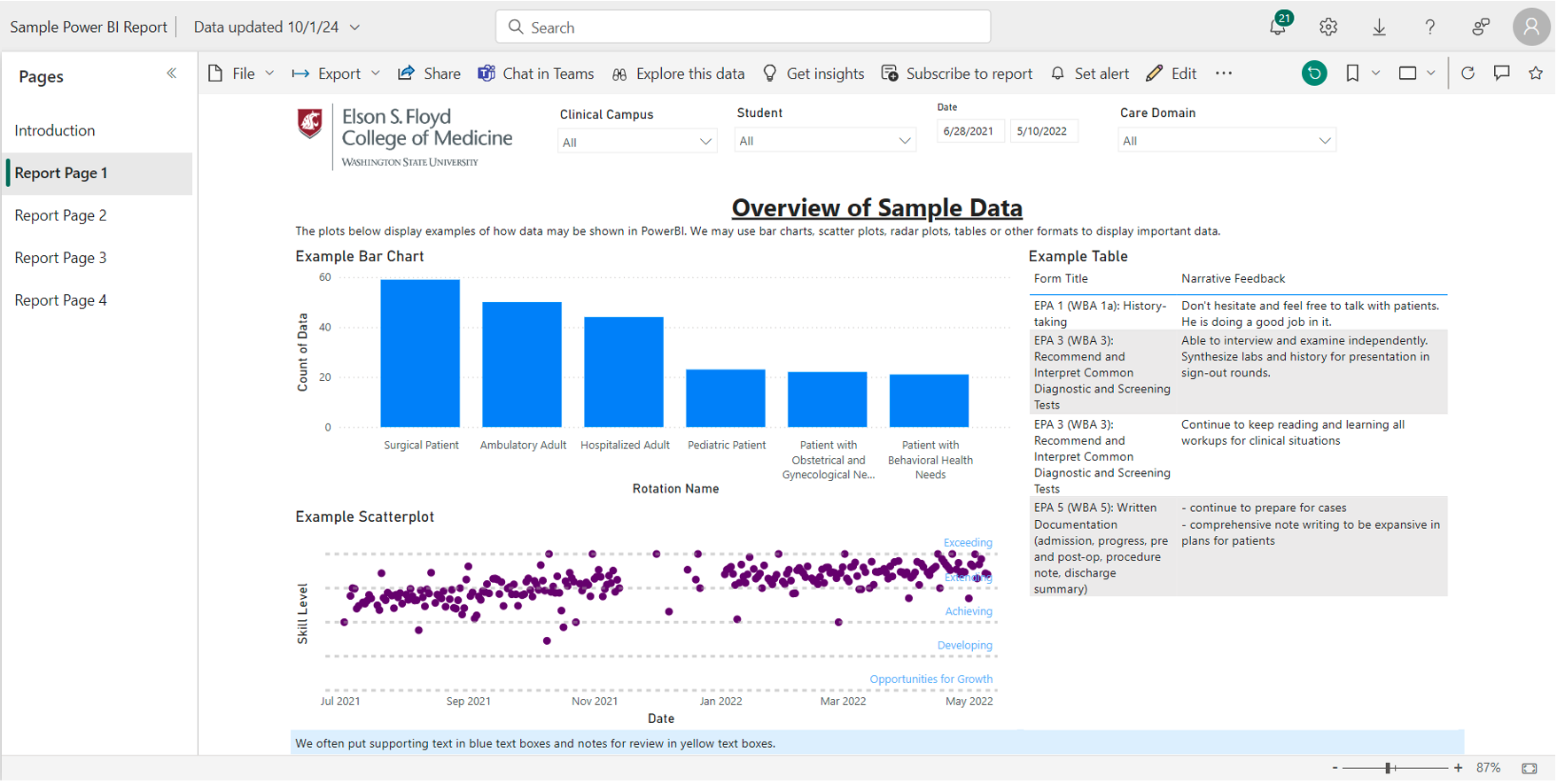
Title of the Report
Page Navigation
View of Current Page/Data
Available Filters
Supporting Text and Notes
Reset Filter Button
Zoom Controls
Power BI remembers the filters you used the previous time you viewed your report. Be aware of what filters are engaged when you reopen a report or reset as needed.
Re-access Existing Power BI Reports
Use the original shared link.
Navigate to the Shared With Me page on Power BI.
This page shows reports that you have already accessed in the past via a first-time link. You may want to bookmark this page.

Power BI Support
The Data Strategy Team is responsible for the development, maintenance, and sharing of Power BI reports across the College of Medicine. For technical questions and concerns, please click the button for support.