
Let’s take a look at Power BI and decide if it is the right tool for you.
What is Power BI?
Power BI is a Microsoft application (like Word, PowerPoint, or Excel) used for interactive data visualization. This application shares many similarities with Excel, with several notable key differences. Some of the Power BI features include:
- Ability to manage larger, more complex datasets.
- Provides more advanced calculations and visuals.
- Allows data exploration and presentation.
What you might like about Power BI
- Improved range of visualization options, including dynamic formatting.
- Flexible security: One report, viewed differently by assigned groups.
- Scheduled refreshes and data alerts available to keep you up to date on changes.
Power BI vs. Excel
- Best for displaying large, organized, and clean data sets.
- New user interface may require time to learn.
- Great for creating and collecting data.
- Can be slow for large data sets with many transformations.
The Power BI Interface
Users will typically interact with the Power BI platform in two ways:
As report viewers who have access to existing Power BI reports through the web portal.
As report developers who create, edit, and manage reports through the desktop app.
Most Power BI users will viewers and will not need to download any additional tools. Viewers typically do not edit reports. Version control/backups are not as accessible as with other office apps, so edits to reports tend to be managed by report developers.
Access Power BI
Report security is a top priority. To help with this, reports are only shared with specific users based on their current roles within the college. Within each Power BI report, users have different access levels.
For example:
- In a learner dashboard, students only have access to their personal feedback.
- Coaches may have access to students under their coaching assignment.
- Regional deans may have access to students at their campus.
This allows the Data Team supporting Power BI across the college to manage permissions on multiple levels. Faculty, staff, and students are only provided with access relevant to their current roles.
New Power BI reports are shared by distributing a special first-time access redemption link. These sharing links may be shared in several ways depending on the user group.
- Students
- Staff and Faculty
Students receive first-time sharing links through E.Flo MD announcements. Student dashboard links are also found under their Cohort Assessment Resources.
Power BI reports for faculty are shared based on specific faculty roles within the college. Some groups (Clinical Competence Panel or Coaches) may receive their report link through group Sharepoint sites. For other groups, secure sharing links may be emailed to specific audiences.
Tip and Tricks for Power BI Navigation
Many of the larger reports (learner dashboards, course evaluations, course monitoring dashboards) are accompanied by introduction or overview pages. It is highly recommended that viewers review these pages as they often outline key context needed for framing the rest of the information. These introduction pages typically outline the goal of the report, key metrics (like grading criteria or processes), and where to seek support if you need it.
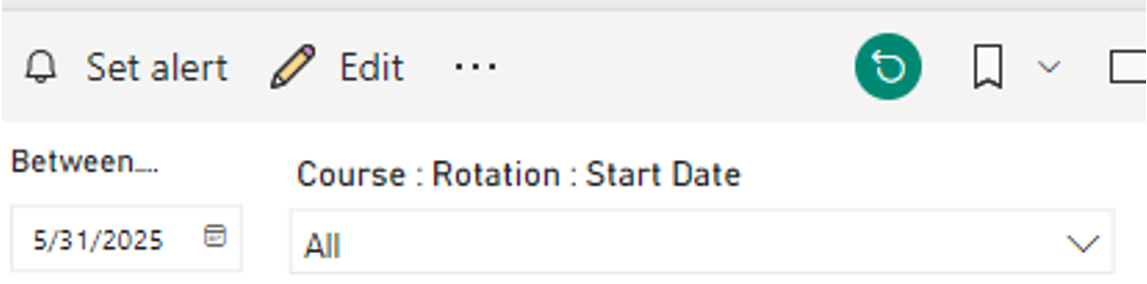
Many Power BI Reports utilize slicers (or filters) to enable users to scope data in certain ways. These filters could be for dates, courses, campuses, students, and more. Slicers function across pages of the report so selecting a filter on one page carries over into adjacent pages as well.
Reset slicers/filters in two ways:
- Individual resets: Remove a single filter using the Erase button that appears when you hover over the menu.

- Mass reset: All filters on a report can be reset by using the green Reset button in the top-right of the report. This will clear all filters across all pages of your report.
Power BI Support
The Data Strategy Team is responsible for the development, maintenance, and sharing of Power BI reports across the College of Medicine. For technical questions and concerns, please click the button for support.

