Our classroom relies on Zoom technology to share content, provide audio and video capability, and record sessions.
Before Your Meeting/Presentation
Make sure a Zoom meeting is set ahead of your presentation time. Enable Mute all participants in the settings.
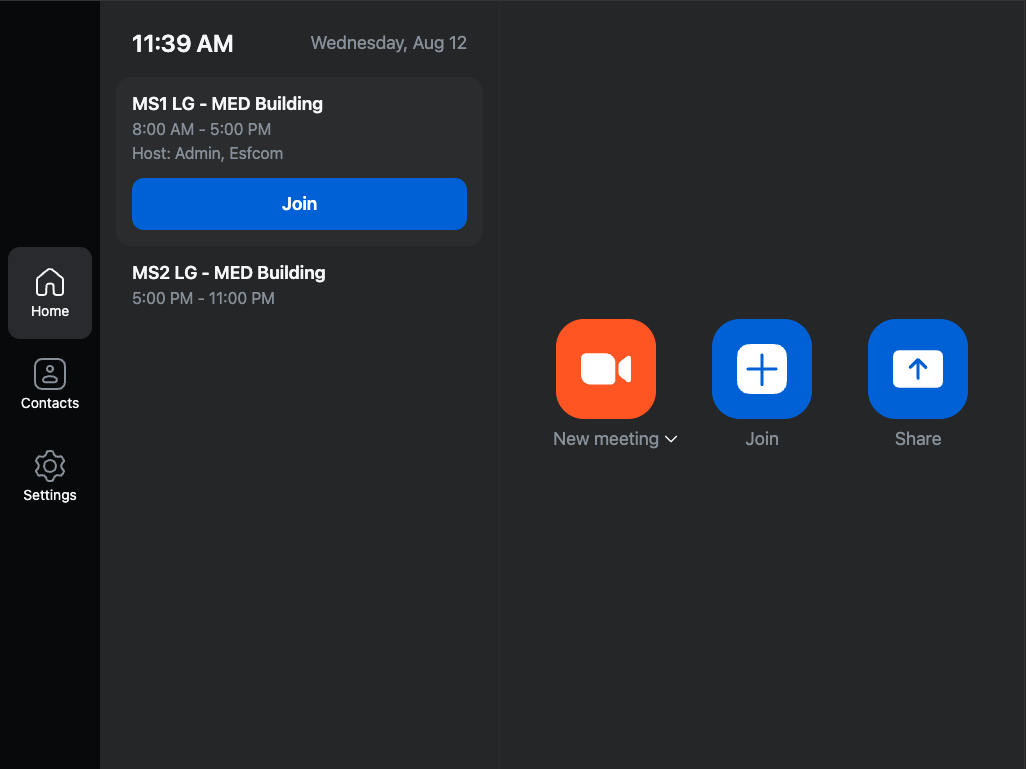
Tap the Join button on the Zoom Room touch panel at the front desk. When prompted, type the Meeting ID and Passcode from the meeting you created.
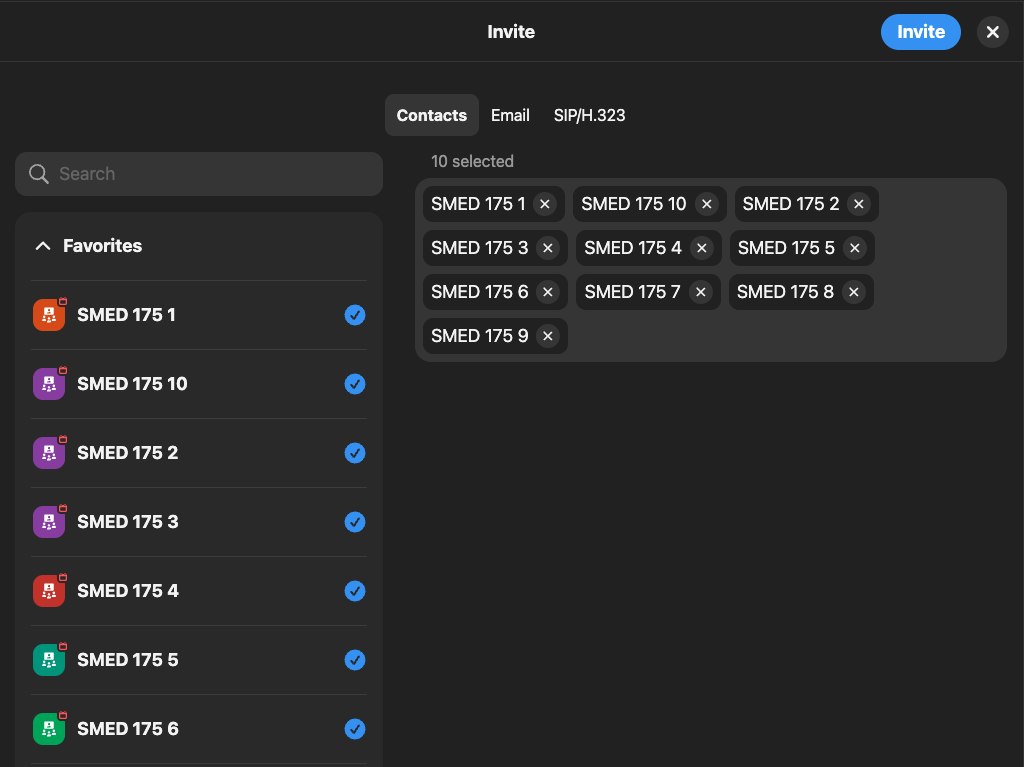
Invite the monitors along the walls by tapping the Invite button within your meeting. Then, select all contacts labeled SMED 175 (1 through 10). Tap the Invite button again in the upper-right corner.
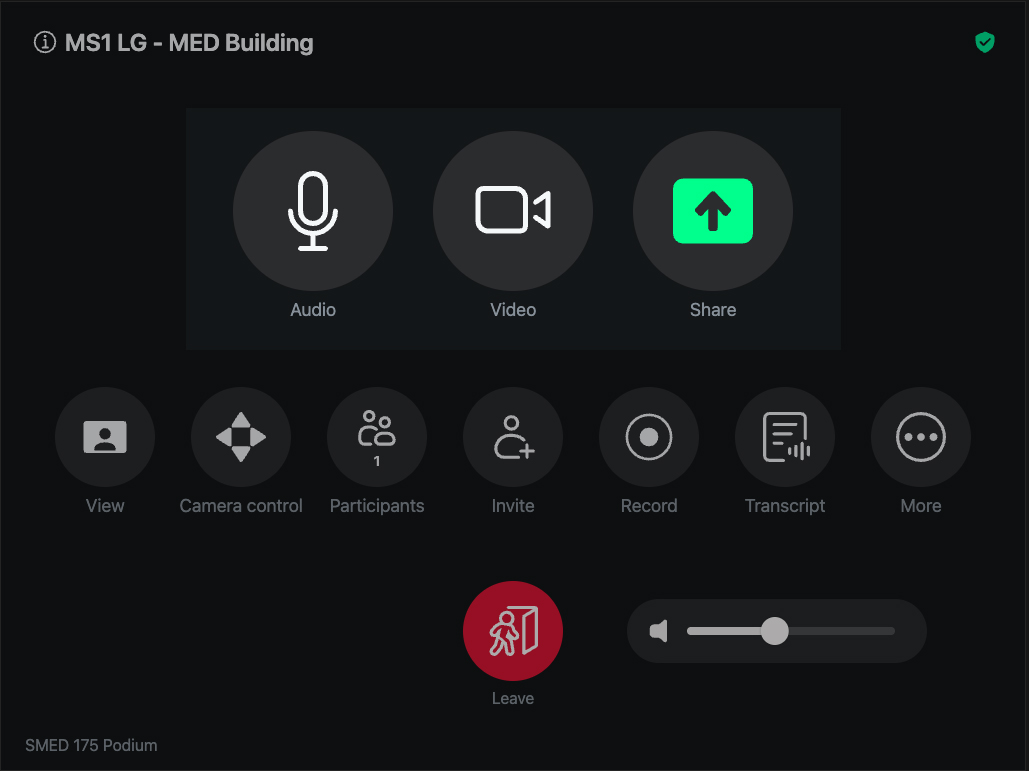
Ensure the Audio and Video are turned on within your meeting for the room labeled SMED 175 Podium.
Take the microphones from the shelf, if needed. If you use the table-top microphones, place them at the tables closest to the letters marked on both the microphones and the walls.
Join the same Zoom meeting on your personal device, and tap Share your screen on your device to display your presentation or other content on the monitors.
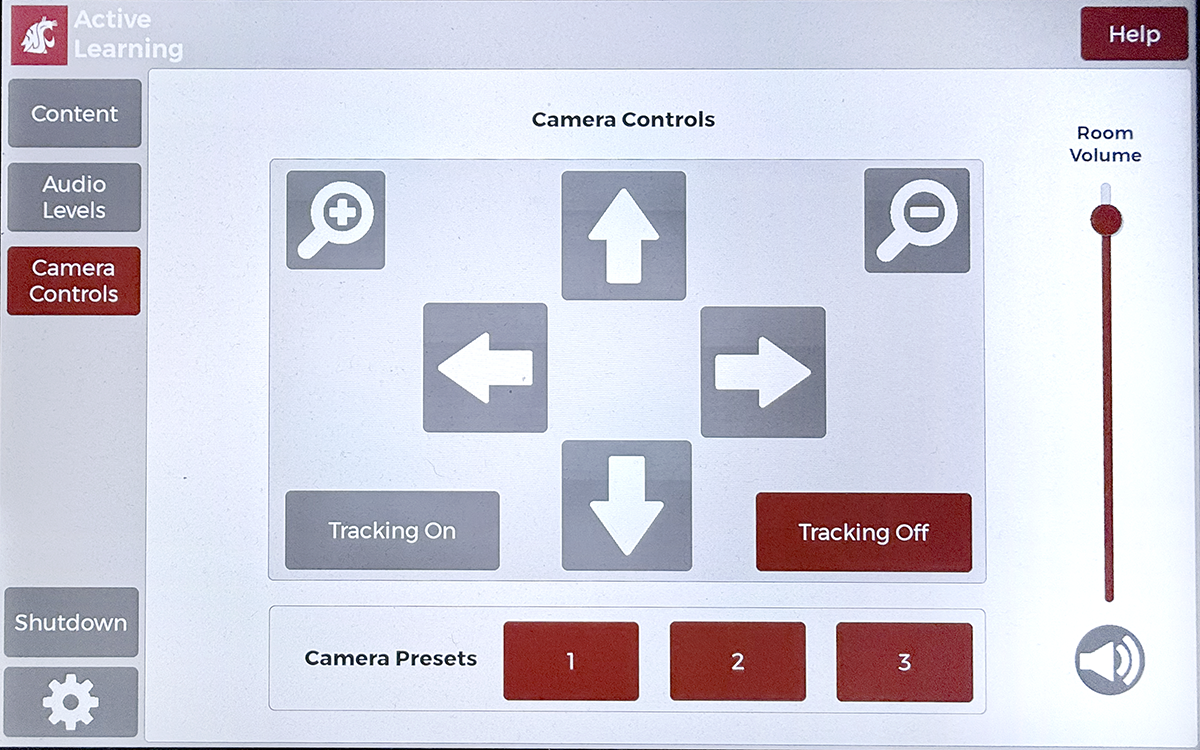
If necessary, adjust the room camera on the Room touch panel at the front desk. Tap the Camera Control button, and then tap the controls to adjust the camera left, right, up, or down, and zoom in or out. There are also camera presets that may give the view you need.
After Your Meeting/Presentation
When your presentation/meeting has ended, have the host end the Zoom meeting for all participants by tapping the redEnd button and then End Meeting for all.
Replace the microphones to their correct and labeled chargers before leaving the room if they were used.