
2026 Style Guide

Button options

Texty text

Icons


icon list

Style is changing. Need to make consistent.

Accordion

Dark outline accordion used most often.

Texty text

texty text

NOTE: Accordion below has gray outline, one above has black outline. Older pages use the dark gray outline.

WSU continues to provide all active civil and AP staff, as well as faculty, with a license for Adobe Acrobat. Go to https://creativecloud.adobe.com/, click Sign In and log in using WSU credentials.

adobe-acrobat-licensing-adobe-signin

  1. The requesting department’s purchaser should visit CDWG’s site
  2. Select WSU Adobe VIP Licensing on the left menu.
  3. Select the desired license (see below) and complete the purchase.
  4. The department purchaser will receive an order confirmation—the confirmation needs to be forwarded to the Crimson Service Desk (CSD) at crimsonservicedesk@wsu.edu, informing the CSD team of the new purchase. CSD will assist your technical team in finalizing your staff’s access to the purchased Adobe services.

NOTE: Style below is different from other pages. On page: Colleagues Common Issues and Fixes

500 Error On First Login
  1.  Log out of Colleagues using https://colleagues.medicine.wsu.edu/logout.

  2. Do not attempt to log in from the log out screen, it will redirect to the Okta Login Screen, not Colleagues.

  3. To log in go directly to https://colleagues.medicine.wsu.edu/ and log in again.

  4. If you still unable to log in the last step before reaching out to MedTech would be to clear all cookies from the Colleagues site.

*Note for Admin: If user has never successfully logged in to Colleagues, they will not have a user record in the user list.

  1. Click the three-dot menu icon in the top-right corner.
  2. Go to Settings.
  3. Select Privacy and security.
  4. Click on Cookies and other site data.
  5. Click See all cookies and site data.
  6. Use the search bar to find the specific website or click the Remove All button to delete all cookies. 
 
  1. Click Safari in the top menu bar.
  2. Select Settings (or Preferences).
  3. Go to the Privacy tab.
  4. Click Manage Website Data….
  5. Search for the website you want to clear or click Remove All. 
  1. Click the three-line menu icon in the top-right corner.
  2. Select Settings (or Options).
  3. Choose Privacy & Security from the left-hand menu.
  4. Scroll to the Cookies and Site Data section.
  5. Click Manage Data… to find and remove individual sites, or click Clear Data to remove all cookies and site data. 
  1. Click the three-dot menu icon in the top-right corner.

  2. Select Settings.

  3. Click Privacy, search, and services from the left-hand menu.

  4. Under the “Clear browsing data” section, click Choose what to clear.

  5. Check the boxes for “Cookies and other site data” and/or “Cached images and files”.

  6. Click Clear now. 

Timeline

Decide

Is my project an Ongoing project?

  • Is there a set pipeline of actionable work?
  • Does the work move through phases that are consistent every time?
  • Does the project represent an ongoing process without an end date?

If you answered Yes to the above questions, you have an Ongoing project. Move to the next step.

Is it not an Ongoing project? Discover types of projects.

Workflow

What are the phases of your project's process or the workflow? These are not Tasks, but the steps that you go through. Here are some examples:

  • New request, Assigned, In progress, Review, Completed.
  • Ideas, In draft, Ready for production, In production, Ready for review, Published.
  • Topics, Standing agenda items, Upcoming meeting, Action items, Notes, References.

Task List

Make a list of the Tasks and Collaborators. Then, put them in order.

  • What Tasks need to happen to complete your project?
  • Who will work on the project (Collaborators)?

Project Setup

Now that you have the phases (Workflow), Tasks, and Collaborators, you're ready to start building your Project in Asana. Use an Asana template to make this process easy. Learn more.

Pricing style

Adobe Creative Cloud for Enterprise

$518.54
  • Single user license
  • Entire suite of Adobe products

Adobe Creative Cloud for Enterprise

$317.81
  • Shared device license
  • Entire suite of Adobe products
  • Useful in a lab, classroom, student lounge, etc.

Adobe Acrobat Pro Only

$191.46
  • Single user license
  • License for Adobe Acrobat Pro only

Icon box (not a note, alert, or info)

Problems?

Please contact Campus IT for assistance: 509-358-7748

Zoom in a Classroom

Tap here for instructions to get your classroom connected!

Icon box option (alternative to featured list)

Become an Asana Ambassador

Once you complete the onboarding, you’ll receive special alerts about upcoming features and access to special events.

No action required

Texty text

Icon box: note, alert, and info

Links within icon boxes are bold white.

Note

Alert

Info

Table

Header 1 Header 2 Header 3
Open a PDF

Inner section

Put text on the left and image on the right for consistency.

Slides

1.
Use title case, not sentence case, for events and learning materials. Titles should have the first letter of each word capitalized. However, there is no need to capitalize the first letter of articles (an or a) or conjunctions (or, for, or and).

Example
  • E.Flo Clinical Events, not E.Flo clinical events


Not sure how to do this? Let Capitalize My Title help you.
2.
Please do not use an ampersand (&) when inputting the names of materials and activities/sessions. Use the word and.
3.
Please use a hyphen (-) without spaces to separate segments of a session’s title (rather than a colon or any other symbol), and if applicable use the “Oxford” or serial comma.
4.
The qualifiers lecture, virtual patient, online module, clinical experience, or an activity type should not be included in the session’s title.

Examples
  • Fetal Alcohol Syndrome-Lecture should be Fetal Alcohol Syndrome
  • Ethics-Small Group should be Ethics
  • Clinical Experience-Blood Pressure Measurement should be Blood Pressure Measurement
5.
Every session should have a unique name to help distinguish it in the database and for reporting. However, there are a few cases where two sessions may have the same name:
A lecture and corresponding lab have the same name, so the lecture will be the stand-alone name, and the lab will have "-Lab" after the title.

Examples
  • Lecture = Anatomy of the Upper Airways
  • Lab = Anatomy of the Upper Airways-Lab

Art and Practice of Medicine Lectures and Small Groups have the exact same name, so the Lecture will be the stand-alone name, and the Small Group will have -Cases, (if cases are being discussed) or -Practice, (if clinical skills are being practiced) after the title.

Examples

  • Lecture = Ethics-Conflict of Interest
  • Small Group = Ethics-Conflict of Interest-Cases
  • Clinical Skills = Ethics-Conflict of Interest-Practice


Note: Ed Tech posts learning materials (PDFs only) for the Art and Practice of Medicine.

Query

Asana for Beginners

Used as navigation

Vevox Basics
Vevox for Faculty
Review Vevox Data
See All Tutorials

Featured List

call to action

Poster Template

To access the additional poster layouts, open the file in the desktop application. The layout area is not accessible on the web.

GO TO the template

Want to log hours for Medschlr?

Click the button for instructions to log your Medschlr hours.

Go to Medschlr instructions

Tabs

Used most often with Desktop/iPad or Mac/Windows or Firefox/Safari/Chrome

Advanced Tab

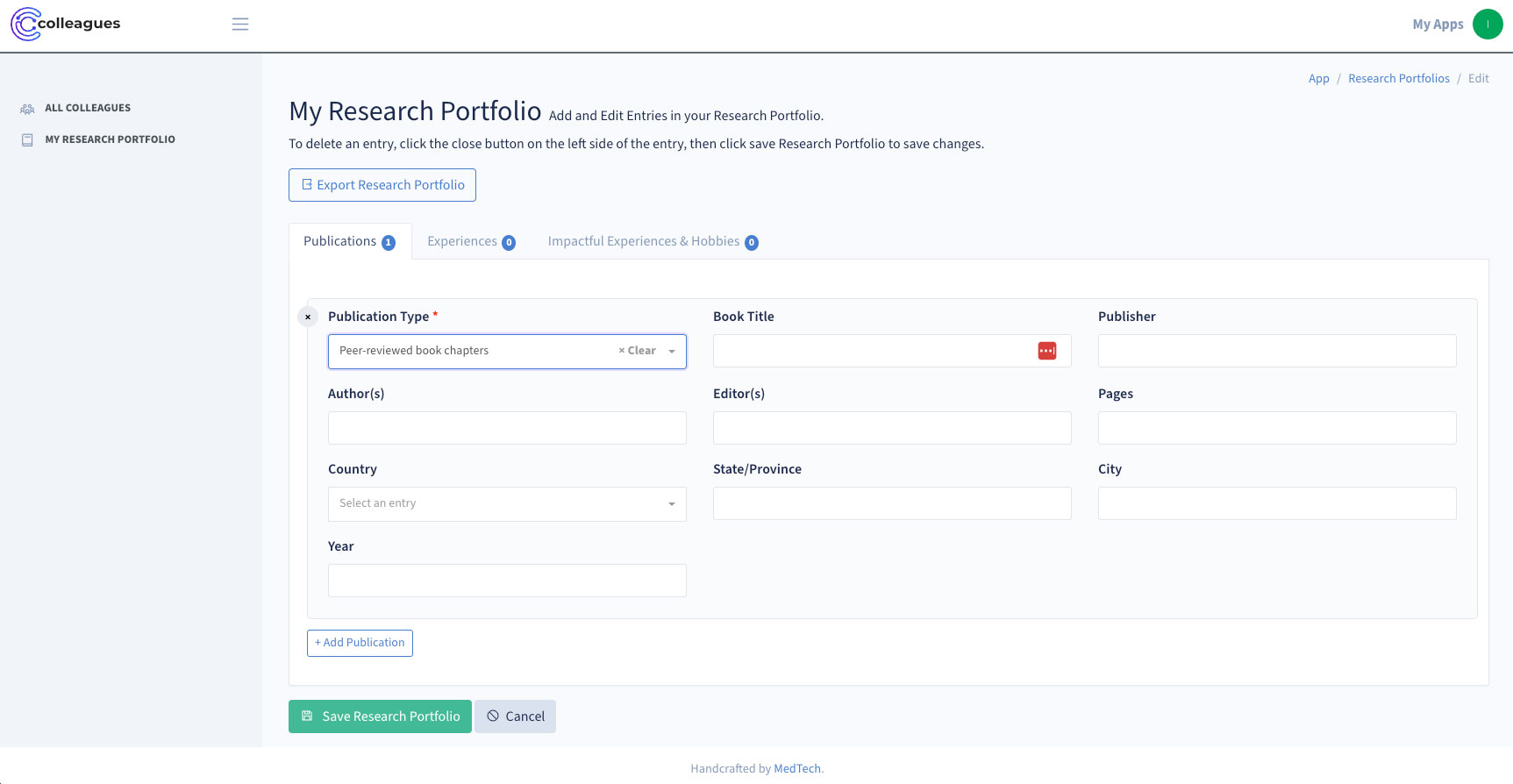
  • To add a new publication or experience, click the “Add Publication” or “Add Experience” button.
  • The Impactful Experiences & Hobbies can only have one entry at a time, you can edit or delete this entry.
  • After you choose a publication type, the required fields will appear automatically.A screenshot of the research portfolio viewed on desktop.
  • If you already have entries, you can update them at any time.
  • Simply make your changes and click the greenSave Research Portfolio” button.
  • To delete an entry, click the “X” circle button near the top left corner of the entry card.
  • Then click Save Research Portfolio to confirm the deletion.
There are two different styles of student/faculty content. Which do you prefer?

Students receive first-time sharing links through E.Flo MD announcements. Student dashboard links are also found under their Cohort Assessment Resources.

Power BI reports for faculty are shared based on specific faculty roles within the college. Some groups (Clinical Competence Panel or Coaches) may receive their report link through group Sharepoint sites. For other groups, secure sharing links may be emailed to specific audiences. 

Faculty

If you are interested in using Vevox, please contact MedTech to request access.

Students

You do not need a Vevox account to participate.

hotspot

Notability-Navigation
Edit, Export, Create Subject

Edit, Export, Create Subject

  • Edit: Edit notes, subjects, and dividers. This is how you can delete notes, change colors of subjects, change names, or create passwords for a specific subject.
  • Export:  Export files to a cloud drive.
  • Create Subjects or Dividers: Notes are organized within subjects. Subjects are organized within dividers.
Divider
Divider
Subjects can be organized into dividers.
Settings, User Guide, Information

Settings, User Guide, Information

  • Settings: Manage your account, backup, themes, and more.
  • User Guide: Instructions for specific usages of Notability.
  • Information: Shortcut to Notability Support, newsletter, and Gingerlabs.com.
Recently Deleted Notes

Recently Deleted Notes
You can recover deleted notes for up to 30 days.

Note

Note
Tap on a note to access it.

Sort by

Sort by . . .
Sort by name, modified date, or created date.

Search, Import, New Note

Search, Import, New Note

  • Search: Find a note.
  • Import: Import a file from a cloud storage system.
  • New Note: Start a new note within the selected subject.
Subject

Subject
Notes can be organized into subjects.

A-head with icon

Style Guide

Connection with blog post

Read more about course websites from a student’s perspective

How to navigate Year 4 course pages

Congratulations! You have entered into your 4th year of medical school. A key to succeeding this year will be understanding how the 4th year is organized and the expectations of each rotation. This is where course pages come in.

Checklist

sidebar icon list

Best practices sidebar Featured list

Best Practices

Instructions for how to use these best practices are below.

Use Apple Computer Only

Download the case ePub to your Apple computer and open the Case edits file. You'll have two windows open on your desktop.

Use an iPad and Apple Computer

If you have an iPad, download the case ePub to your iPad and open the Case edit file on your computer.

Use an iPad only

This is not recommended! The two windows that need to be open on the iPad will make it difficult to type your changes and look at the case ePub.

Sidebar

Issues: Color contrast on links doesn’t work on lighter colors.

Technical Support Staff Workstation Certification

For Faculty and Staff

A note on downloading zoom

Button for pages that are showing up in google search

The G-Suite is available for use by current Elson S. Floyd College of Medicine students, faculty, and staff.

Video playlist

Playlist

3 Videos
Tap to enlarge. (12pt, italics with period)