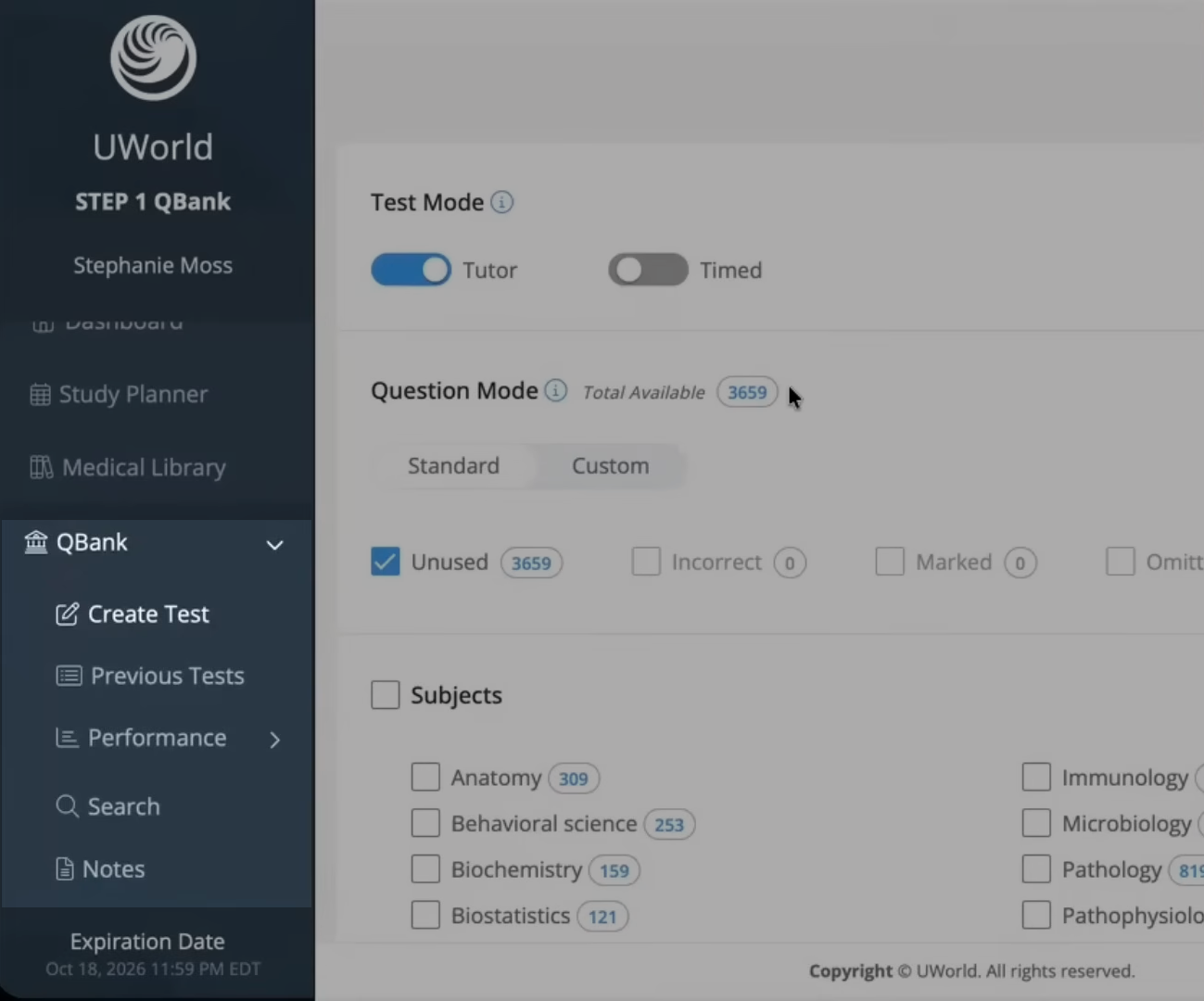
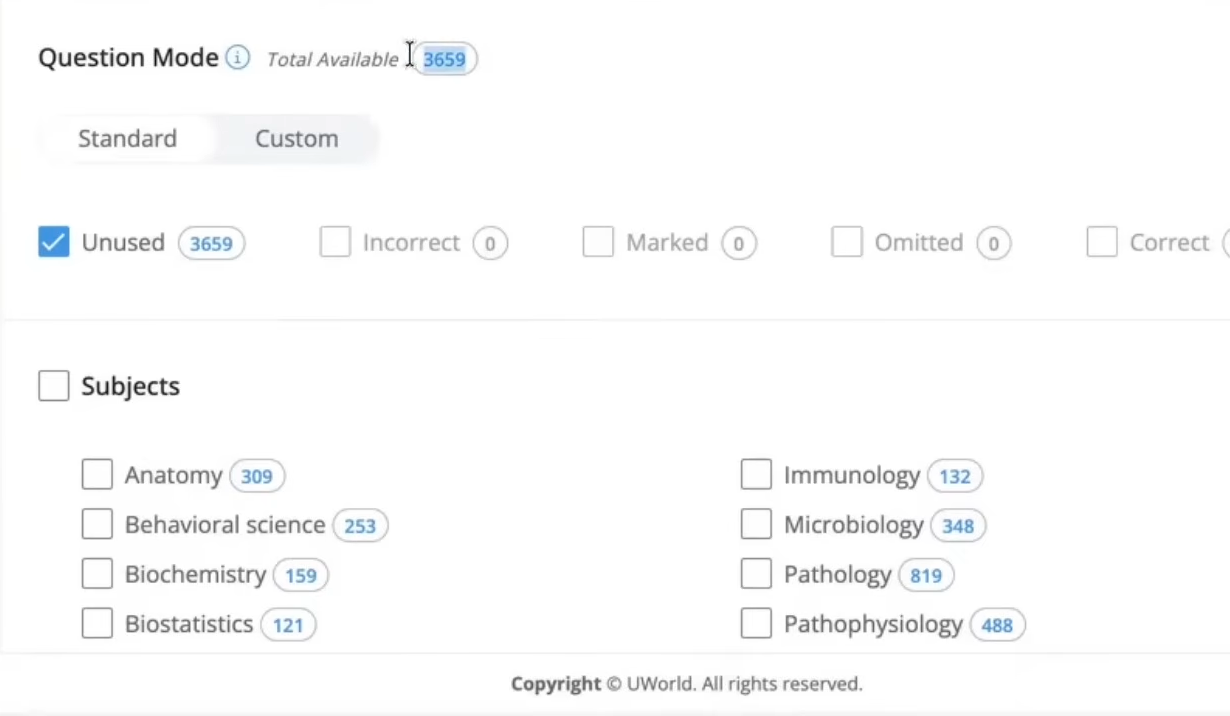
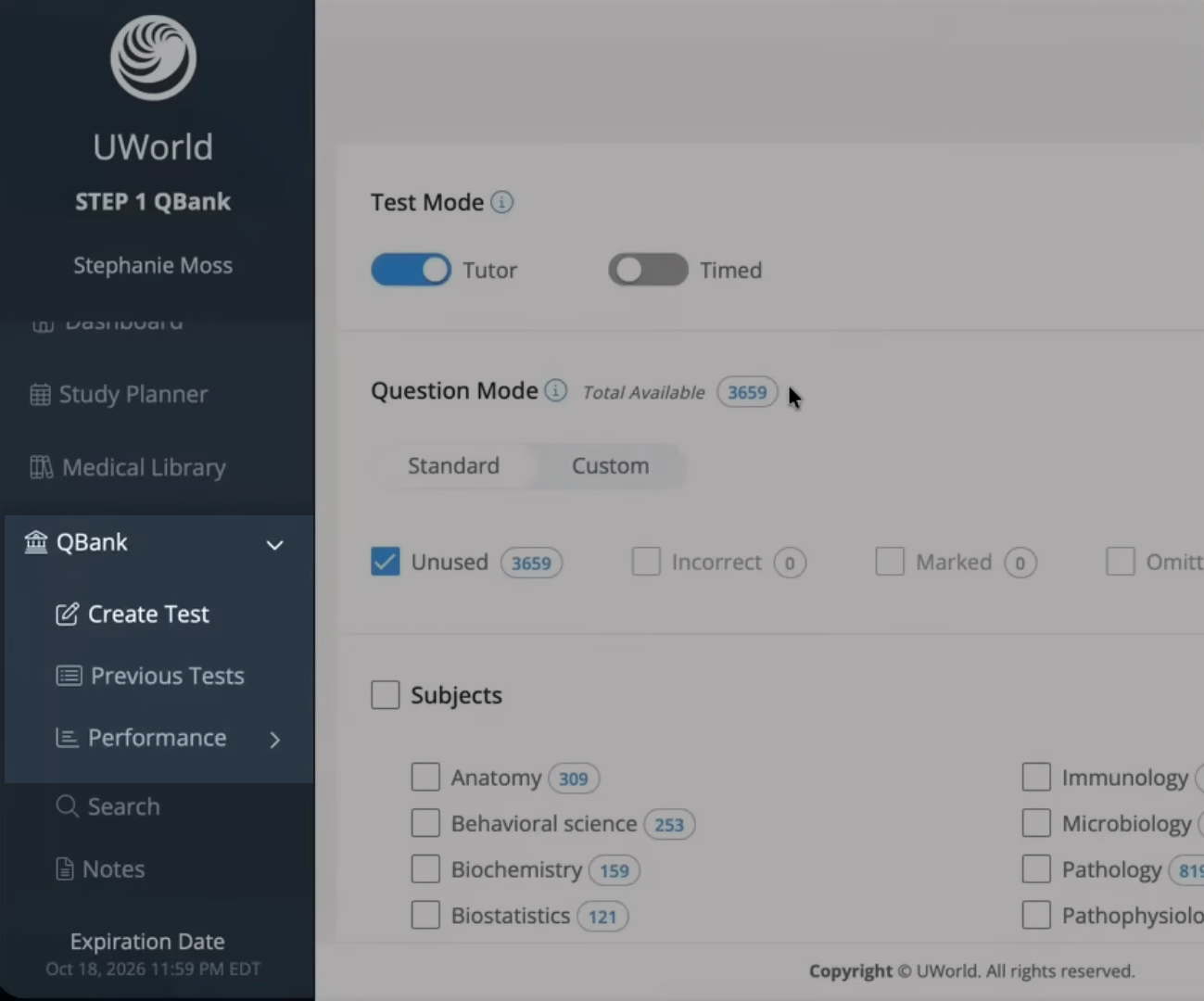
When setting up a practice test from the Question Bank, select the types of questions, including the subjects and systems that you want to review. Choose subjects or systems to filter out questions.
Additionally, choose how many questions out of the maximum available in the selected subjects and systems you want to work through.
Tap to enlarge.
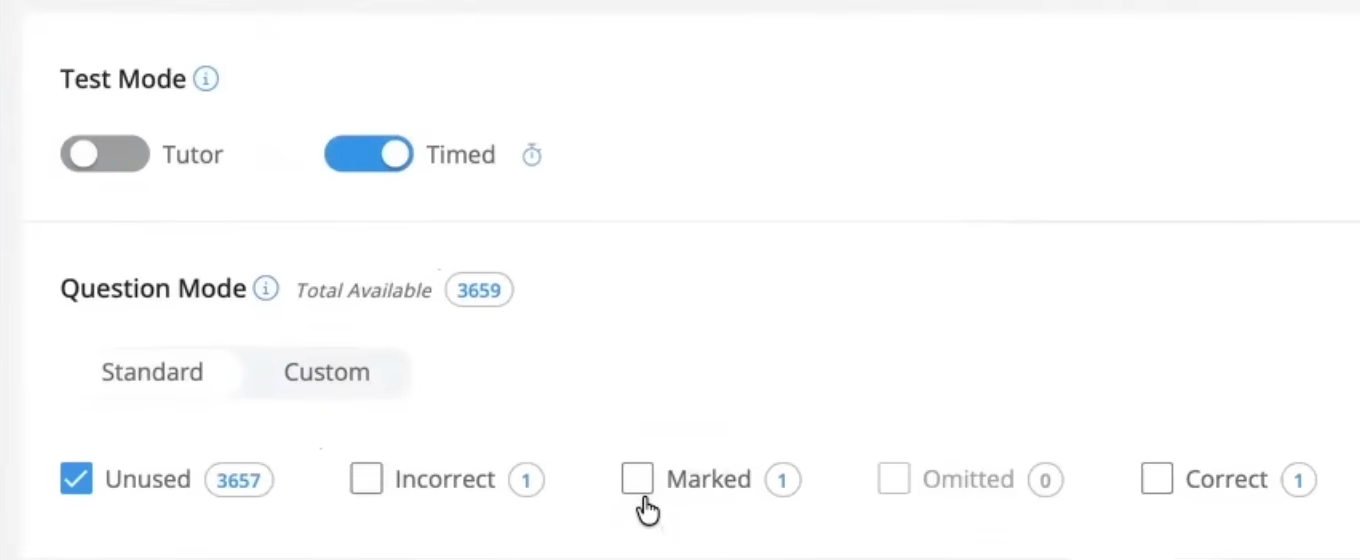
Choose whether to filter by:
Unused questions.
Questions you answered incorrectly in the past.
Questions you marked omitted.
Questions you answered correctly.
Tap to enlarge.
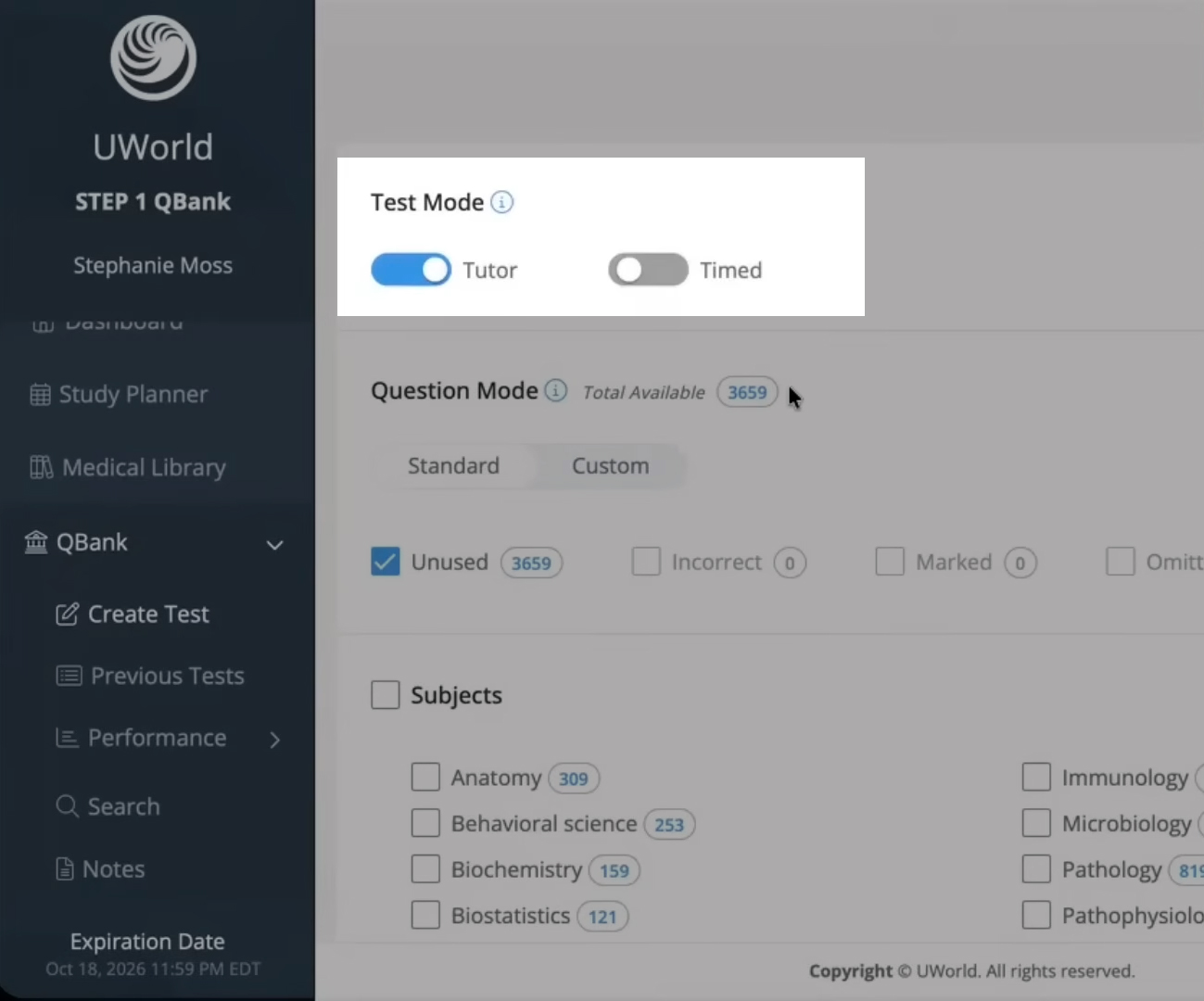
Before beginning the practice test, choose between Tutor mode and Timed mode.
Tutor mode provides the answer and explanation after submitting each question.
Timed mode will act like a real exam and only provides your results after submitting every question.
Tap to enlarge.
Take a Practice Test
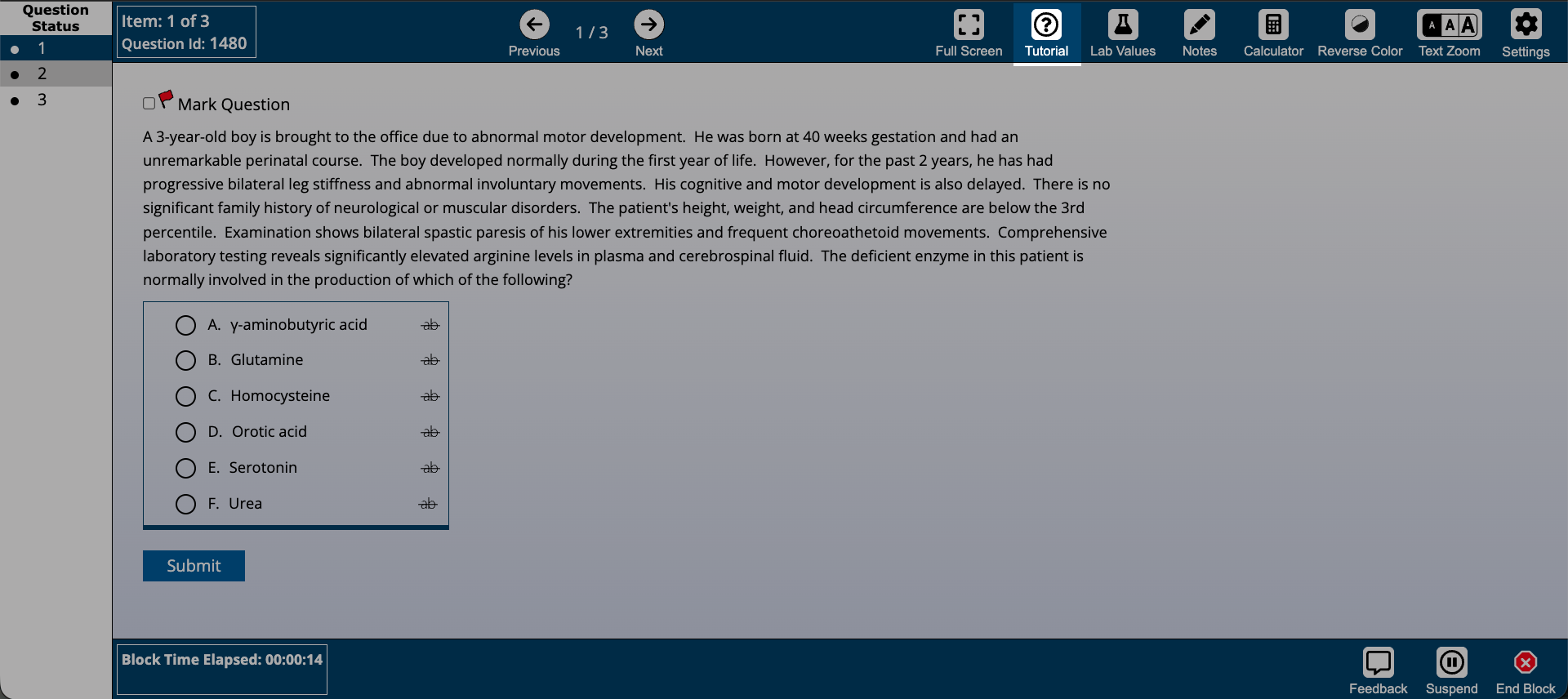
Within the exam interface, click the Tutorial button in the top navigation bar for keyboard shortcuts and an interface tutorial.
Tap to enlarge.
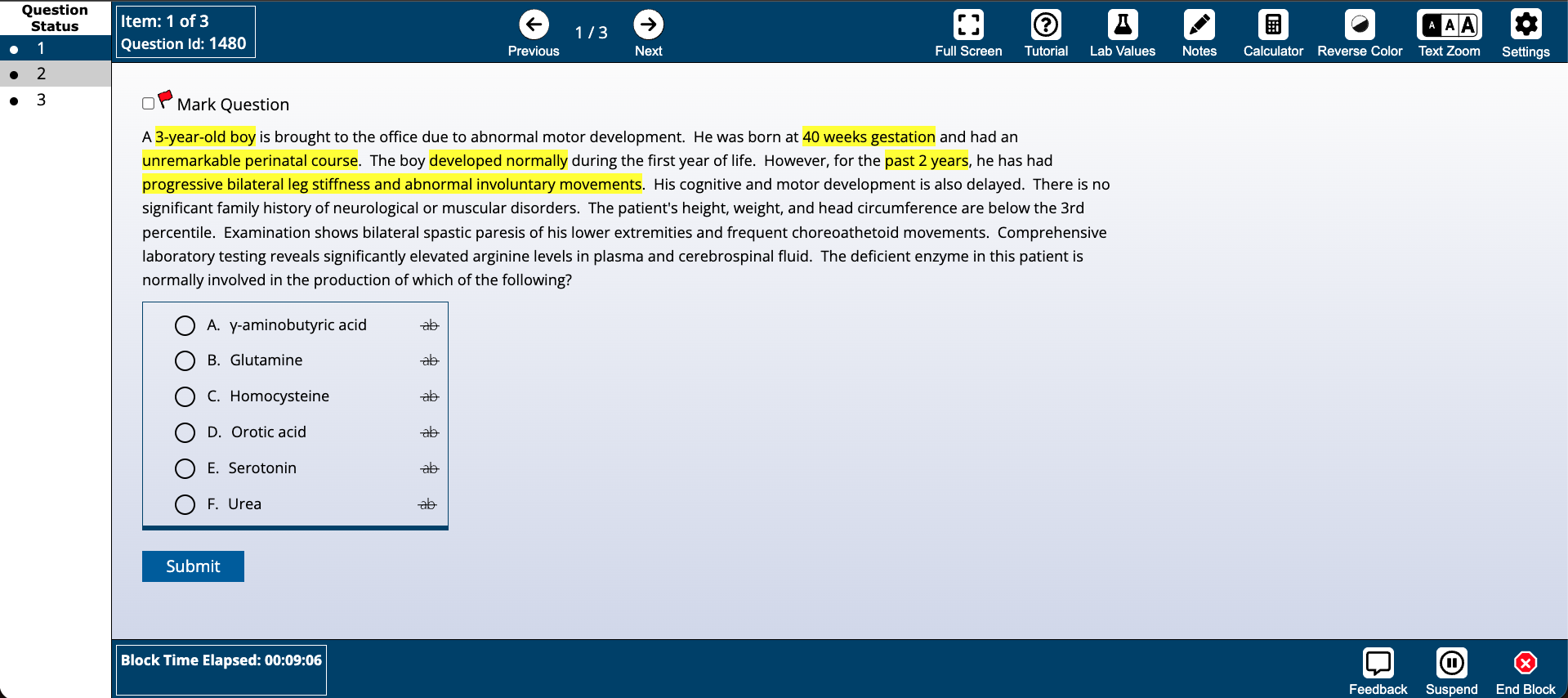
Highlight question text by dragging your mouse over any words or sentences. Then click the highlighted text to unhighlight the text.
Tap to enlarge.
View Performance
After a practice test, view your overall Performance and Previous tests using the left sidebar under the QBank.
Tap to enlarge.
If you need assistance, please click the button for support.