
Overview
The PowerPoint Accessibility Checker is a built-in tool that scans your presentation for potential issues with accessibility and classifies them as errors, warnings, or tips. It can run in the background, or (if that is too distracting) use it to check the document when you’re done.
PowerPoint Templates
Take the guesswork out of whether your presentations are accessible or not. Use the templates below that are already digitally accessible.
Download the General PowerPoint Template
Download this accessible PowerPoint template. Please use the Styles to create consistent and digitally accessible materials. Follow the best practices shown in the videos below.
Download the Teaching PowerPoint Templates
If you are teaching at the College of Medicine, please download this accessible PowerPoint template that is specifically set up for teaching presentations. Please use the Styles to create consistent and digitally accessible materials. Follow the best practices shown in the videos below.
Identify Errors in PowerPoint
The PowerPoint Accessibility Checker identifies:
- Missing alt text.
- Unclear hyperlink text.
- Improper heading structure.
- Inadequate color contrast.
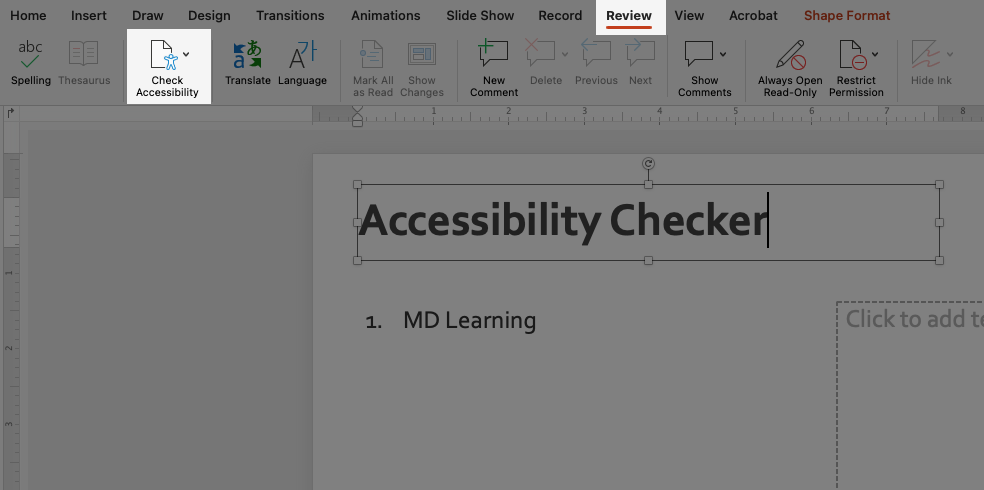
- Open the Review tab, and select the Check Accessibility button in the toolbar.
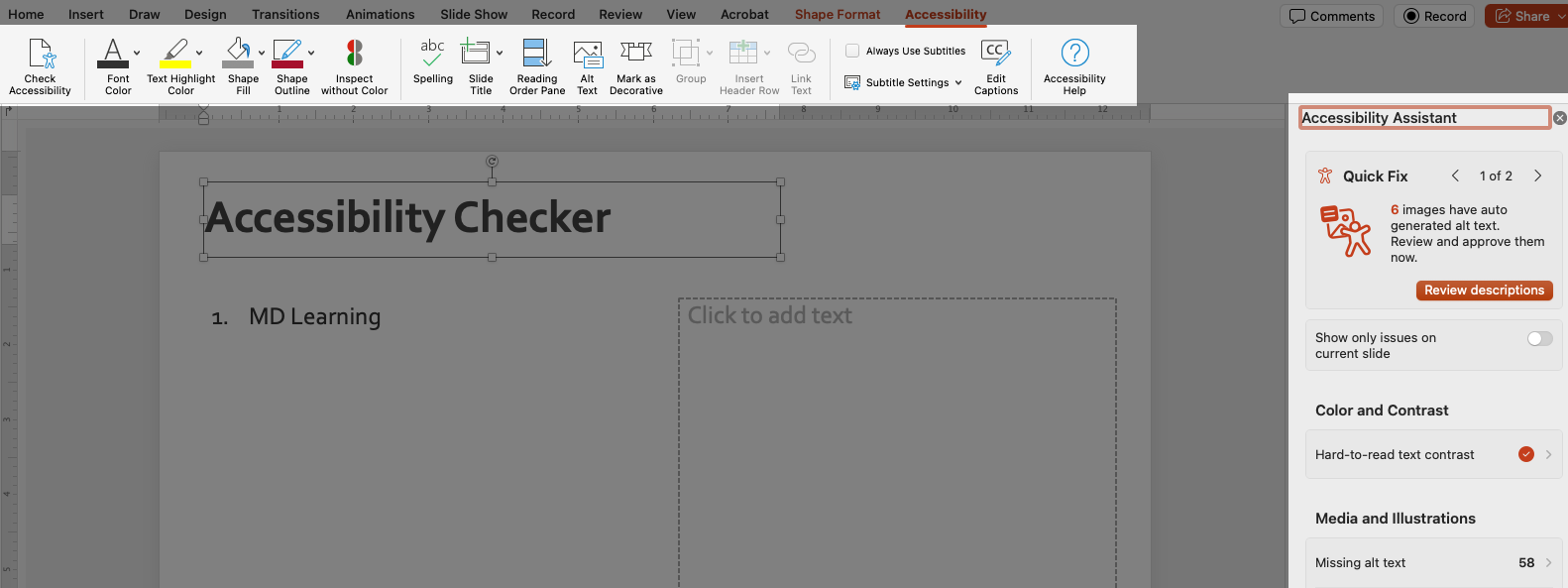
- Now you have access to the Accessibility toolbar and the Accessibility Assistant on the right side of the screen.
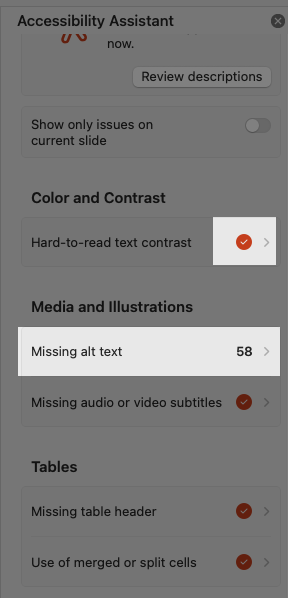
- In the Accessibility Assistant, if there is a Red checkmark at the end of a section row, there are no accessibility issues in that section. Great job!
- If there is a number at the edge of that section, click the Right arrow to open the section and review the issues.
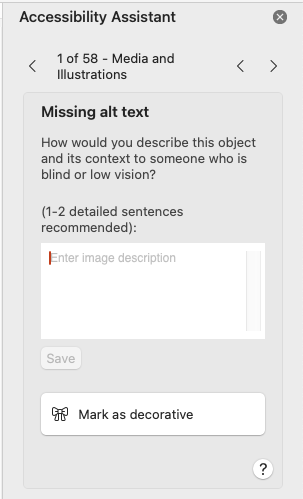
- Select the item to see what steps need to be taken to correct it. In this example, we’re missing alt text.
Best Practices
- Use the PowerPoint template with accessibility built in.
- Add meaningful, descriptive alternative text to all images, shapes, and charts.
- Use the built-in PowerPoint Accessibility Checker when you have completed your PowerPoint presentation.
- Do not use complex tables, empty cells, or merged cells.
- Do not underline text in a PowerPoint presentation. Underlining should be reserved for links.
FAQ
Not always. Scanning your presentation and using your knowledge of digital accessibility should always be the first step. Use your best judgment, and if you identify something you feel would reduce accessibility (such as color contrast) that the accessibility checker isn’t flagging, adjust the color regardless.
No. It helps catch many issues, but it cannot evaluate meaning, context, or whether content makes sense when read aloud.
Some issues depend on context. The checker flags potential barriers so you can decide whether they apply
Some issues can be fixed with one click, but many require you to make decisions. For example, you may need to write meaningful alt text.
Some issues create serious barriers, while others may only affect certain users or situations.
Fixing one issue (like adding a Heading) can reveal additional issues that were previously hidden.
It catches some color contrast problems, but not all. It’s important to visually review your content.
The checker is concerned with how tables are read by screen readers, not visual layout.
There will be more about accessible Tables in PowerPoint coming soon.
Complex table layouts can confuse screen readers and should be simplified when possible.
There will be more about accessible Tables in PowerPoint coming soon.
Resources
- Learn about Titles (Headings) in PowerPoint.
- Learn about Lists in PowerPoint.
- Learn about Links in PowerPoint.
- Microsoft: Make your content accessible to everyone with the Accessibility Checker.
- Microsoft: Improve accessibility with the Accessibility Checker.
Need assistance?
Contact the College of Medicine Digital Accessibility Team if you have questions or need one-on-one support or additional training.
Contact the Digital Accessibility Team