
Overview
Lists convey and create relationships between items. These relationships are displayed visually and in the underlying code, which assistive technologies use to read.
PowerPoint Templates
Take the guesswork out of whether your titles are accessible or not. Use the templates below with list styles that are already digitally accessible.
Download General PowerPoint Template
Download this accessible PowerPoint template. Please use the tools available in PowerPoint to create consistent and digitally accessible materials. Follow the best practices shown in the video below.
Download Teaching PowerPoint Templates
If you are teaching at the College of Medicine, please download this accessible PowerPoint template that is specifically set up for teaching presentations. Please use the tools available in PowerPoint to create consistent and digitally accessible materials. Follow the best practices shown in the video below.
This video shows how to create lists in PowerPoint, Word, and Outlook.
Types of Lists
There are two main types of lists:
- Unordered (bulleted).
-
Ordered (numbered or lettered).
To choose between bullets and numbering, ask yourself: Would changing the order of these items affect the meaning?
If yes, use Numbering (Ordered lists).
If no, use Bullets (Unordered lists).
Use Lists in PowerPoint
Best Practices
- Use the PowerPoint template with accessibility built in.
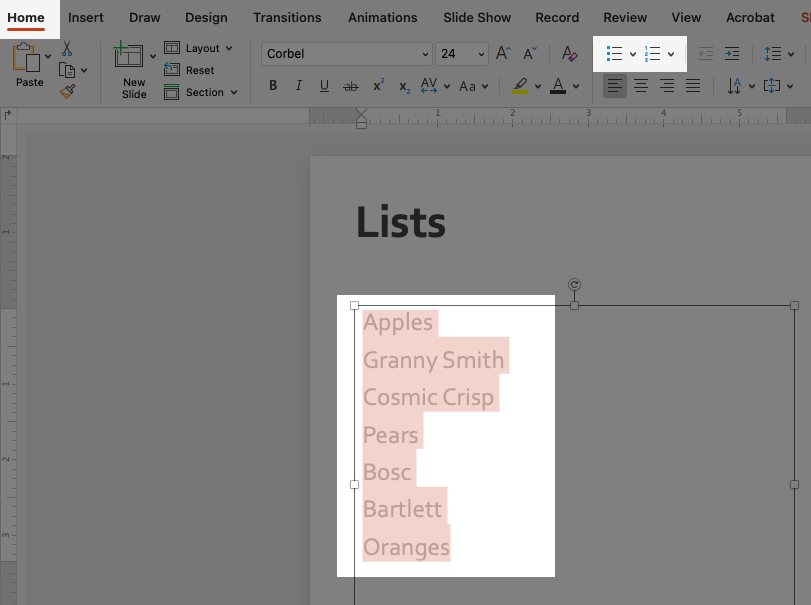
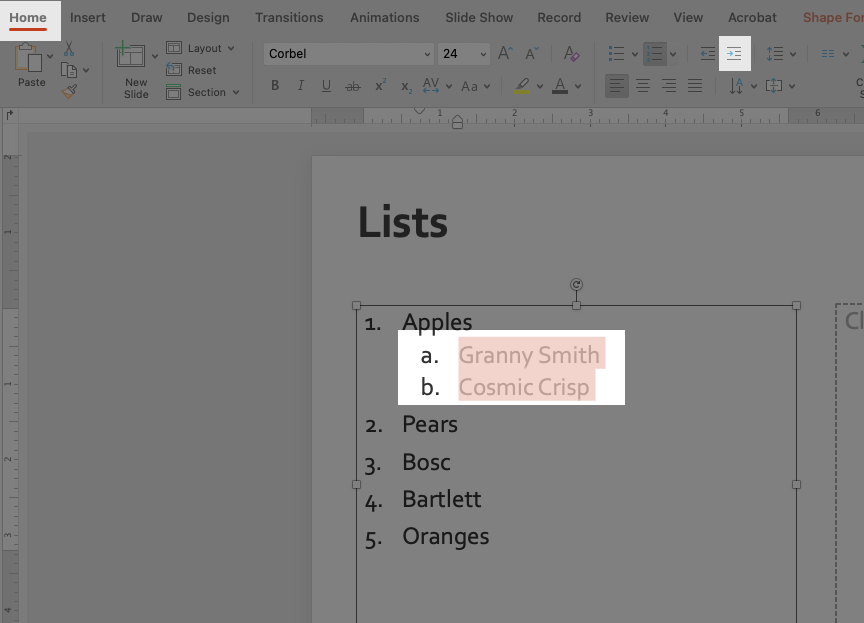
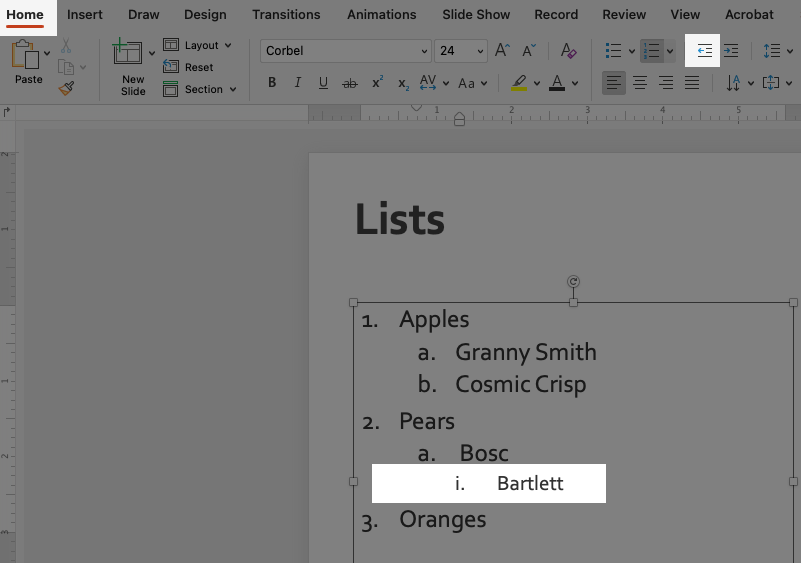
- Use the built-in application tools to indent your lists.
- Properly nest your lists so assistive technology can identify sublists.
- Do not manually insert bullets or numbers to create a list.
These changes affect appearance, not structure. Screen readers don’t recognize them as lists. Use Word’s built-in tools to create your lists.
- Do not use the Tab key to create indents. It adds empty spaces, which screen readers can’t interpret as part of a list.
FAQ
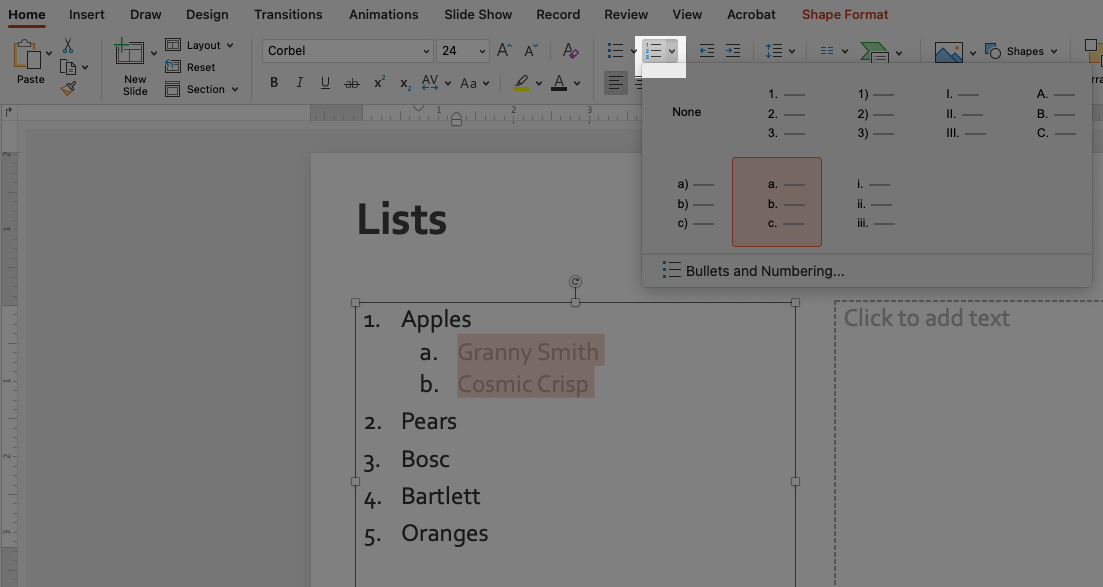
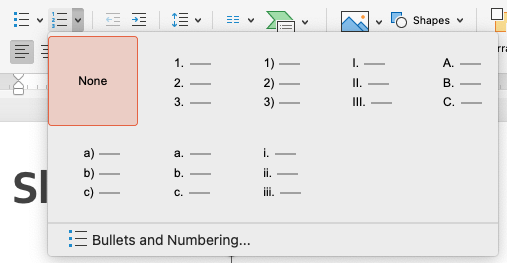
- To change a Numbered list style, use the Dropdown menu next to the Numbered lists icon.
- A popup menu shows different options for a Numbered list, including letters. This also includes options for adjusting the style for each level of a multi-level lists.
Manually typed bullets and numbers are not recognized as lists by screen readers, so users lose the important structure in your document.
Screen readers announce that a list is present, how many items are in the list, and each item’s position in the list.
The short answer: Sort of! You will still need to check the formatting because it can be lost or not be accessible. Always check that the pasted content is a true list and always run the Accessibility checker in PowerPoint.
Yes, if the list was created using Word’s built-in List tools. Manual indentation (using the Tab key or Space bar) is not accessible.
Yes, if the list was created using PowerPoint’s built-in List tools. Manual indentation (using the Tab key or Space bar) does not create an accessible list.
Resources
-
- WSU Core Concepts: Lists.
- How to use the PowerPoint accessibility checker.
- Accessible PowerPoints (Video).
- Create Accessible Presentations (Video).
- Microsoft: Make your PowerPoint Presentations Accessible to People with Disabilities (Written).
Need assistance?
Contact the Digital Accessibility Team if you have questions, need one-on-one support, or need additional training.
Contact the Digital Accessibility Team