
Overview
Headings help organize content in a way that allows users to quickly navigate and locate relevant information. Properly using heading labels ensures your digital content is structured and easy to interpret. Take the guesswork out of whether your headings are accessible or not. Use the template below with headings that are already digitally accessible.
Download
Download this accessible Word template. Please use the Styles to be consistent and digitally accessible. Follow the best practices in the videos.
Use Headings in Word
Headings are identified using Word’s built-in heading styles, which creates a structure that screen readers can navigate.
Prefer videos over step-by-step instructions? Watch all the Best Practices in Digital Accessibility for Office365 apps in one place.
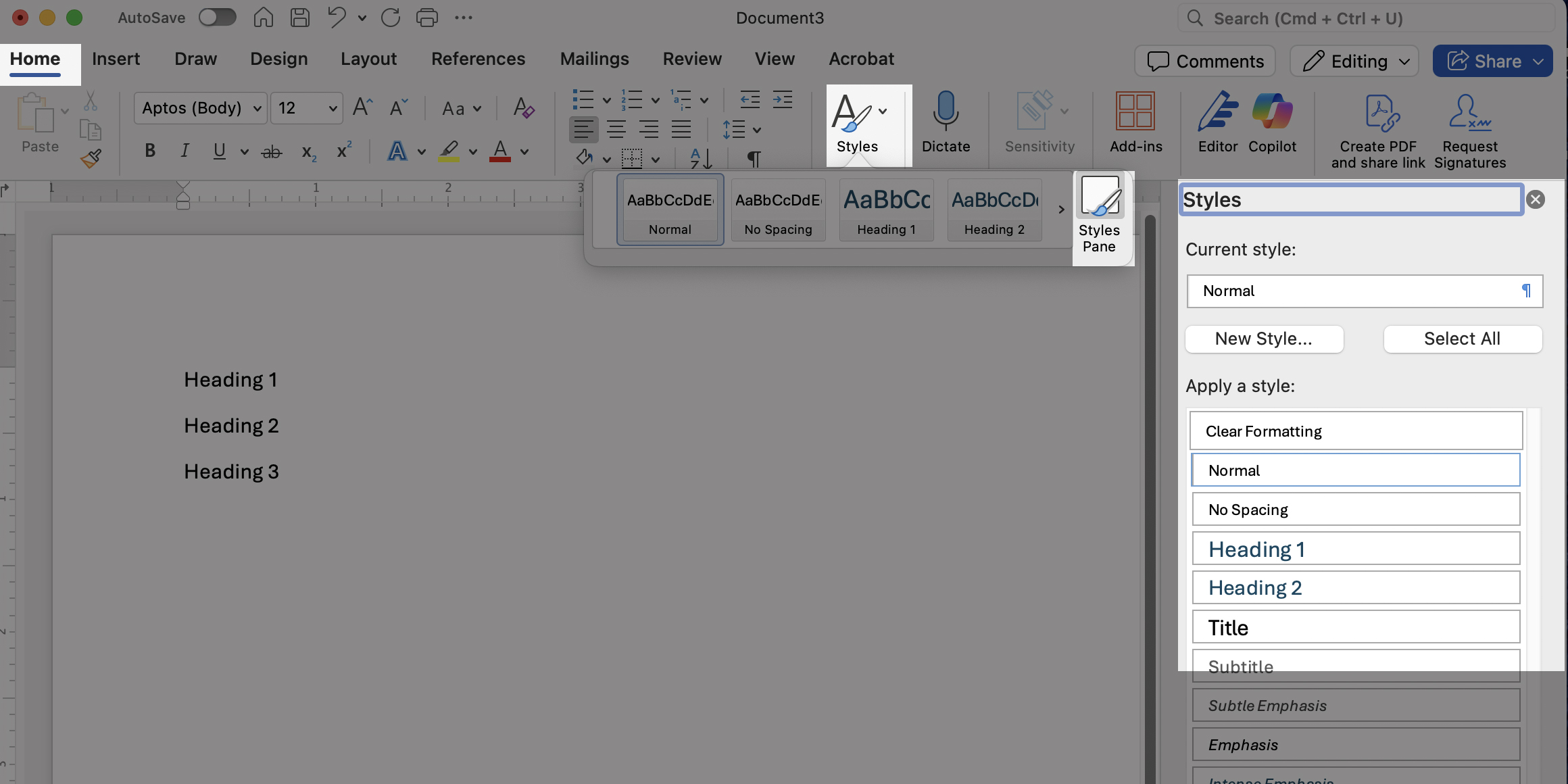
- Heading styles are found on the Home Tab. Expand your window further to see the styles, or open the Styles Pane to format and make your document accessible.
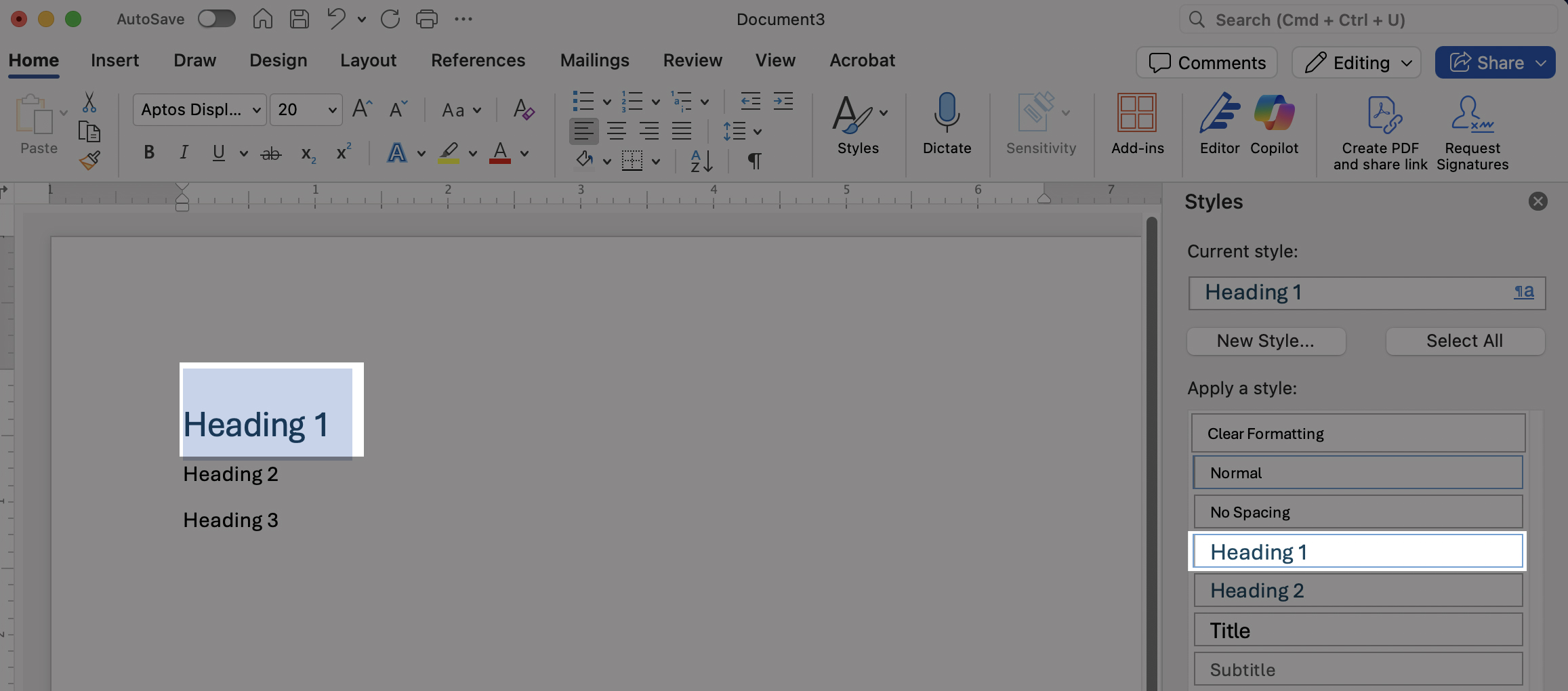
- Every document should begin with a Heading 1. There is only one Heading 1 in a document. It introduces the main topic and establishes the structure for the rest of the document.
- To apply a heading style, select the text that will be your heading. Then choose the appropriate heading style.
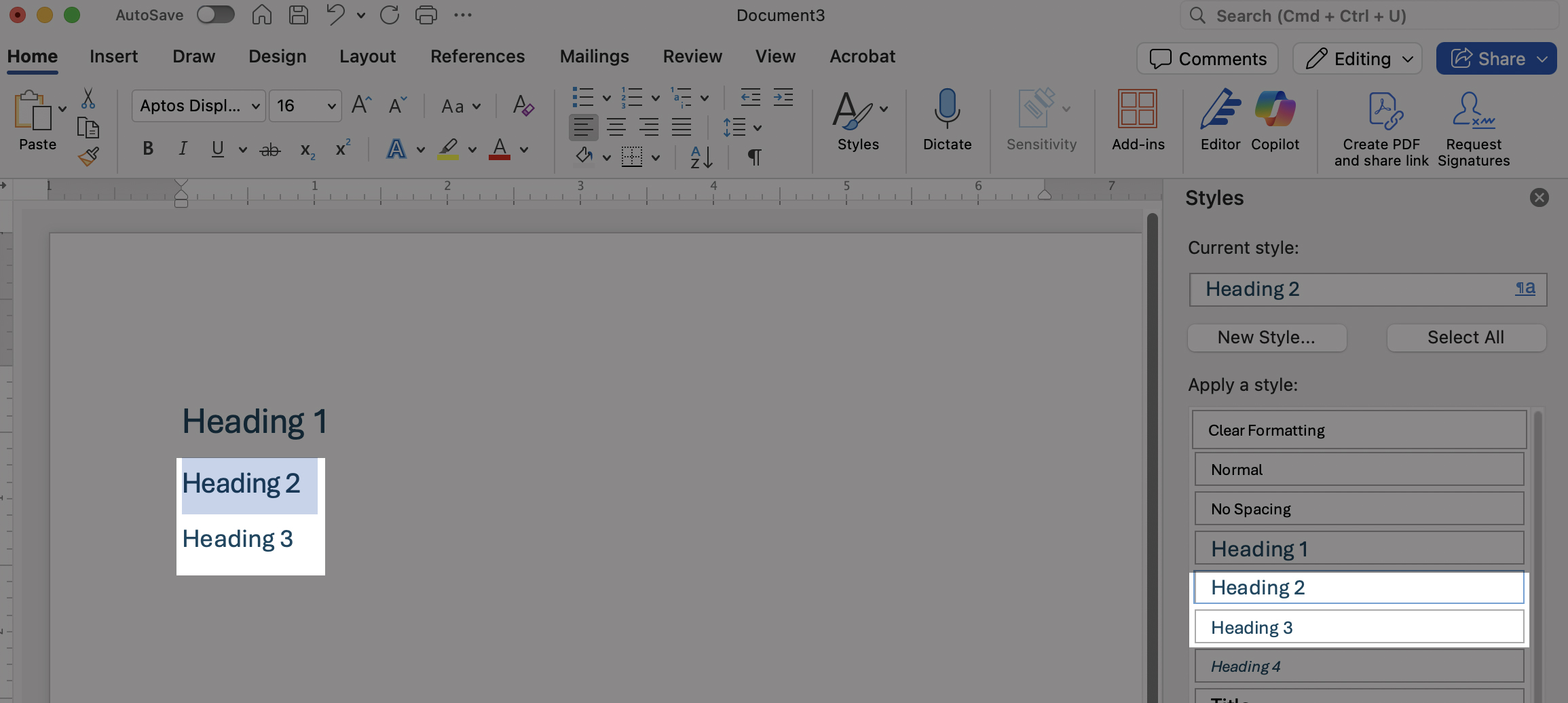
- Use Heading 2 for major sections. When you start a new major section, always return to Heading 2.
- Use Heading 3 for subsections within a major section.
Best Practices
- Use the Word template with accessibility built in.
- Headings must follow a logical order, so it’s important not to skip levels. For example, a Heading 3 should never follow a Heading 1 without a Heading 2 in between.
- Use the Word Styles pane to format your document.
- Do not use bold text or larger fonts to make text appear to be a heading.
These changes affect appearance, not structure. Screen readers don’t recognize them as headings. Apply a heading style to make your document accessible. Use the Word template with built-in accessibility.
- Do not use a heading style for its appearance instead of structuring content.
Resources
- How to use the Word accessibility checker.
- Microsoft: Make your content accessible to everyone with the Accessibility Checker.
- Microsoft: Improve accessibility with the Accessibility Checker.
- Create an Accessible Microsoft Word Document. Key steps in making your Microsoft Word document more accessible.
- WSU Core Concepts: Headings.
Need assistance?
Contact the Digital Accessibility Team if you have questions, need one-on-one support, or need additional training.
Contact the Digital Accessibility Team