Images in PowerPoint

Table of Contents

5-min read

Overview

 This section covers best practices for adding alt text and ensuring the accessibility of images in PowerPoint.

Alt text stands for Alternative text. It serves three purposes:

  • Enables screen readers to convey image meaning to users with visual impairments.
  • Displays in place of an image if it fails to load.
  • Helps users understand content.

PowerPoint Templates

Take the guesswork out of whether your titles are accessible or not. Use the templates below with list styles that are already digitally accessible.

Download the General PowerPoint Template

Download this accessible PowerPoint template. Please use the tools available in PowerPoint to create consistent and digitally accessible materials. Follow the best practices shown in the video below.

Download the Teaching PowerPoint Templates

If you are teaching at the College of Medicine, please download this accessible PowerPoint template that is specifically set up for teaching presentations. Please use the tools available in PowerPoint to create consistent and digitally accessible materials. Follow the best practices shown in the video below.

Does My Image Need Alt Text?

To decide if an image needs alt text, ask yourself:  

  1. If I removed this image, what text would I add instead?  
  2. What is the purpose or function of this image?   


 If the image serves no purpose or wouldn’t change the meaning of the document if removed, mark it as decorative

Click the button to learn how to write alt text.

Add Alt-text in PowerPoint

Images that convey content or function need Alt Text so screen readers can describe them to users with visual impairments. 

For a Mac

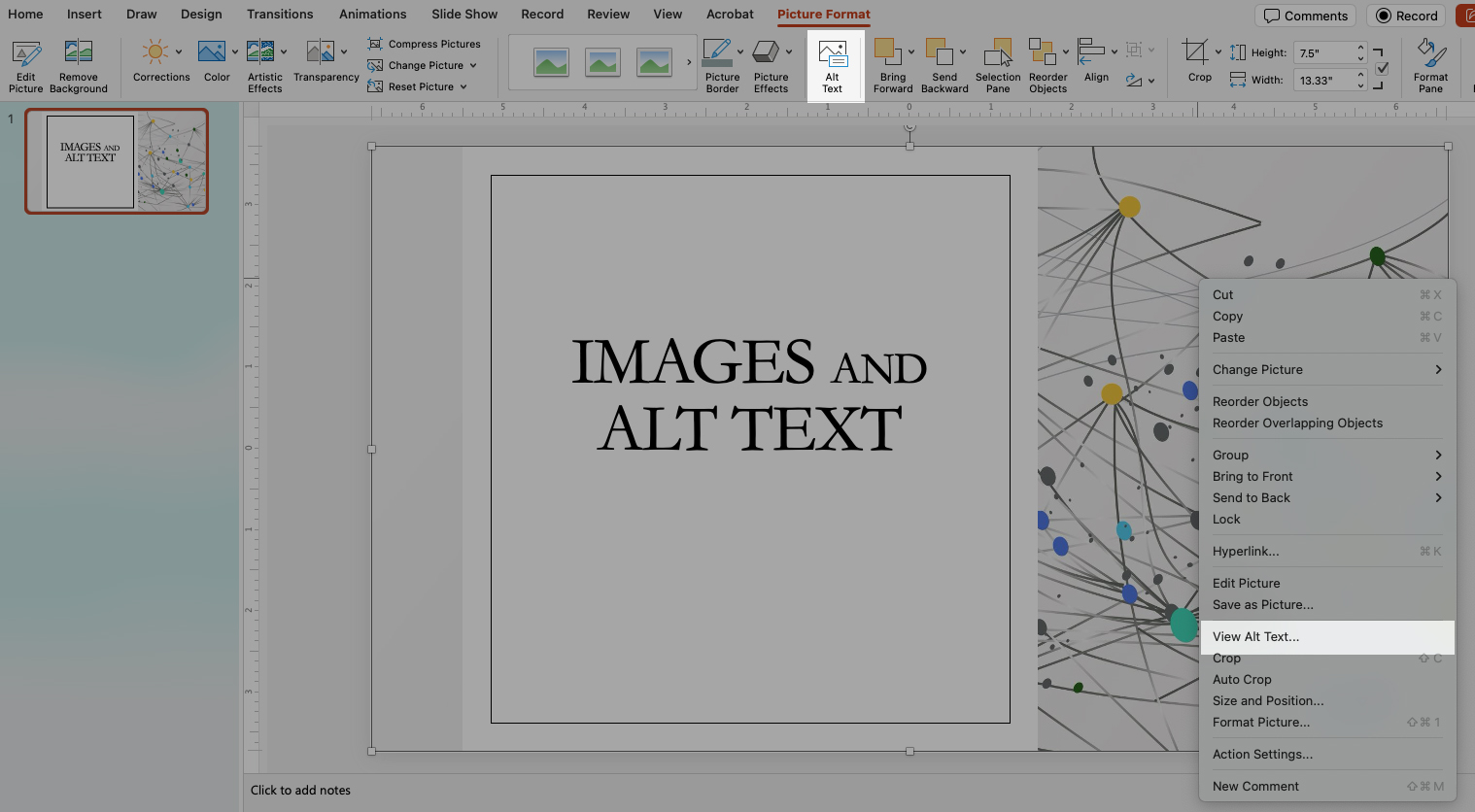
  1. Right-click the image.
  2. Select View Alt Text.
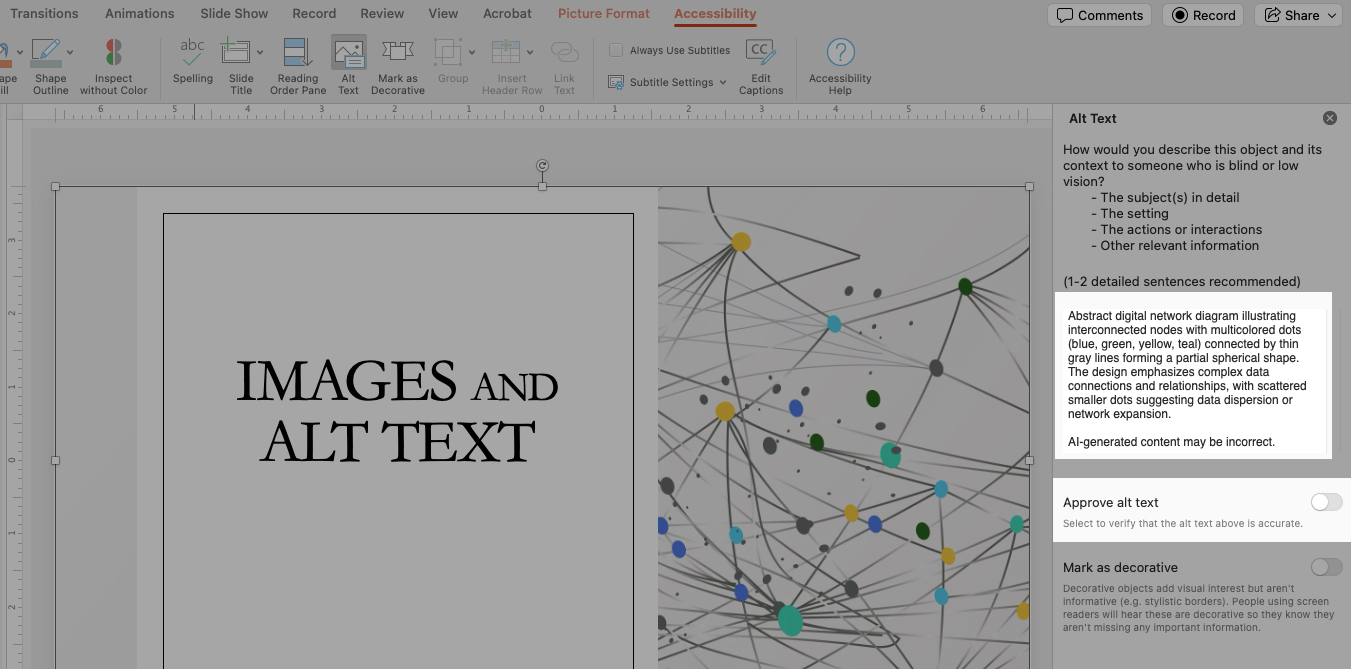
  1. A window will appear on the right side of your PowerPoint presentation.
  2. Either write a brief description of what the image shows or toggle the Mark as decorative button. (Marking an image as decorative tells screen readers to skip it, ensuring users know they aren’t missing important and content.)
  3. Then, toggle the Approve alt text button to remove the statement AI-generated content may be incorrect.

In some instances, PowerPoint may have auto-generated suggested alt text. Always read read the text first to ensure it is correct, clear, and describes the image accurately. This is particularly important for medical images.

Screenshot with hotspots for oom Orientation
Meeting Information

Meeting Information
Send an invite to an individual by:

  • copying the meeting URL or the full meeting invitation, or
  • sending directly via email. This is great for when you forget to loop someone in and need to have someone join last minute.
Audio
Audio
This tab will allow you to control audio functioning in Zoom and select the microphone and speaker for your device. If you are having trouble hearing, you can change volume configurations. Generally it is a good idea to test your audio devices prior to the meeting to make sure they are working properly. 
Video

Video
Clicking this will start sending a video feed from your computer to all participants. The video feed will come from the default camera of the device. If your computer does not have a built-in webcam, you will need to connect one before you have access to video conferencing.

Video Layout

Video Layout
Changing the video layout will affect how the other participants' videos are displayed on your video panel.

Displayed Participant Information

Displayed Participant Information
This is where meeting participants' video or screen name will populate, allowing you to view whoever is actively speaking.

Number of Participants

Number of Participants
Clicking this tab will bring up a list of all the participants in a meeting and allow you to see who is talking at any given moment.

Chat

Chat
You can send messages within the meeting if you want to avoid talking over the main speaker. Great for structured Q & A!

Helpful Links

Share
This tab will allow you to send content to individuals from inside the meeting itself. You can share screens like your desktop, any files you are working on, or a Powerpoint that you may have loaded up.

We advise practicing this a couple of times before your meeting starts!

Record

Record
This will allow you to start a recording within the meeting. This can also be set up prior to the meeting as a default or as a function of the Zoom Outlook function when the meeting is created.


Reactions

Reactions
You have access to a list of non-verbal feedback and emoji reactions that show up for other participants in the video panel.

For Windows

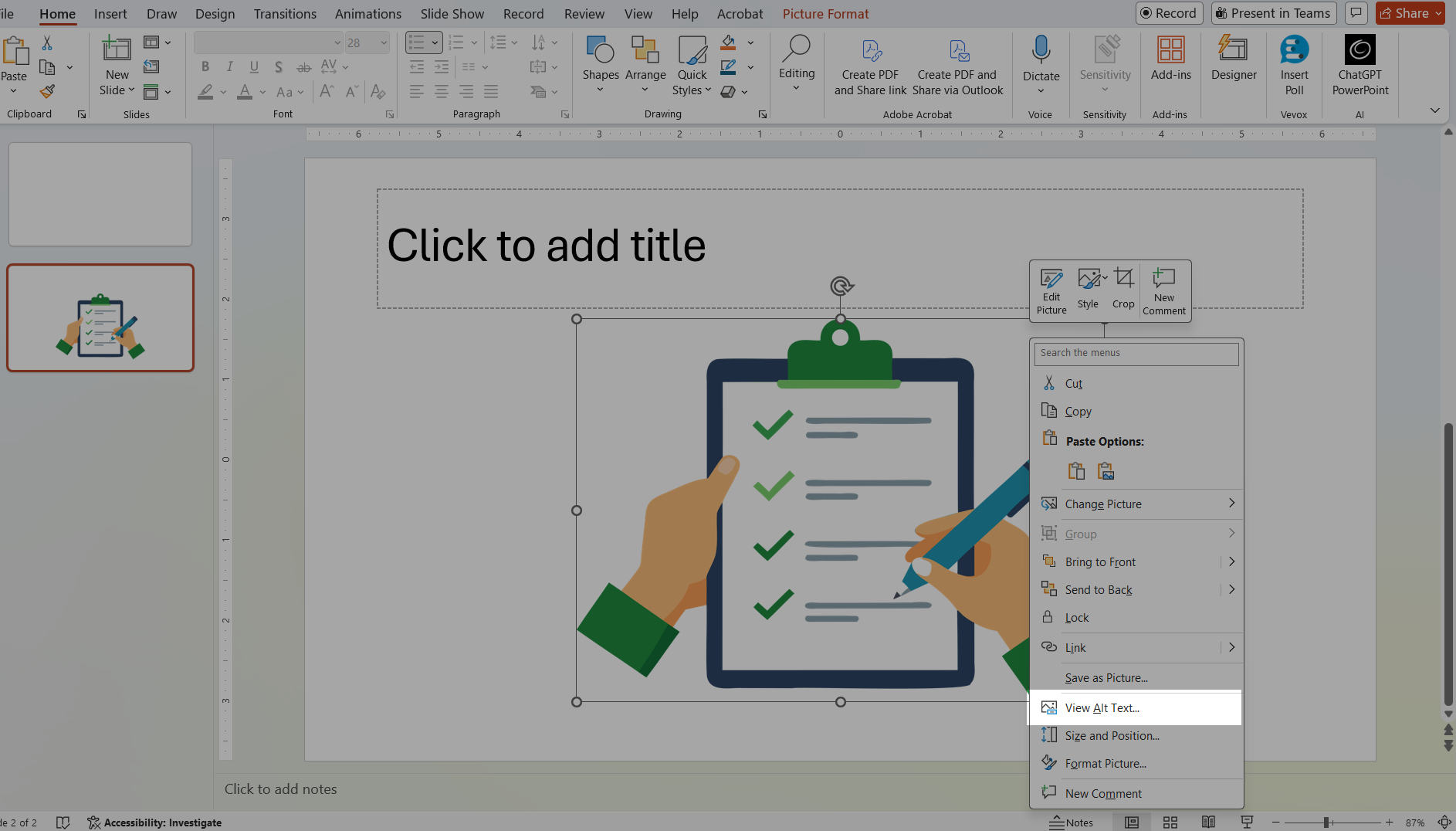
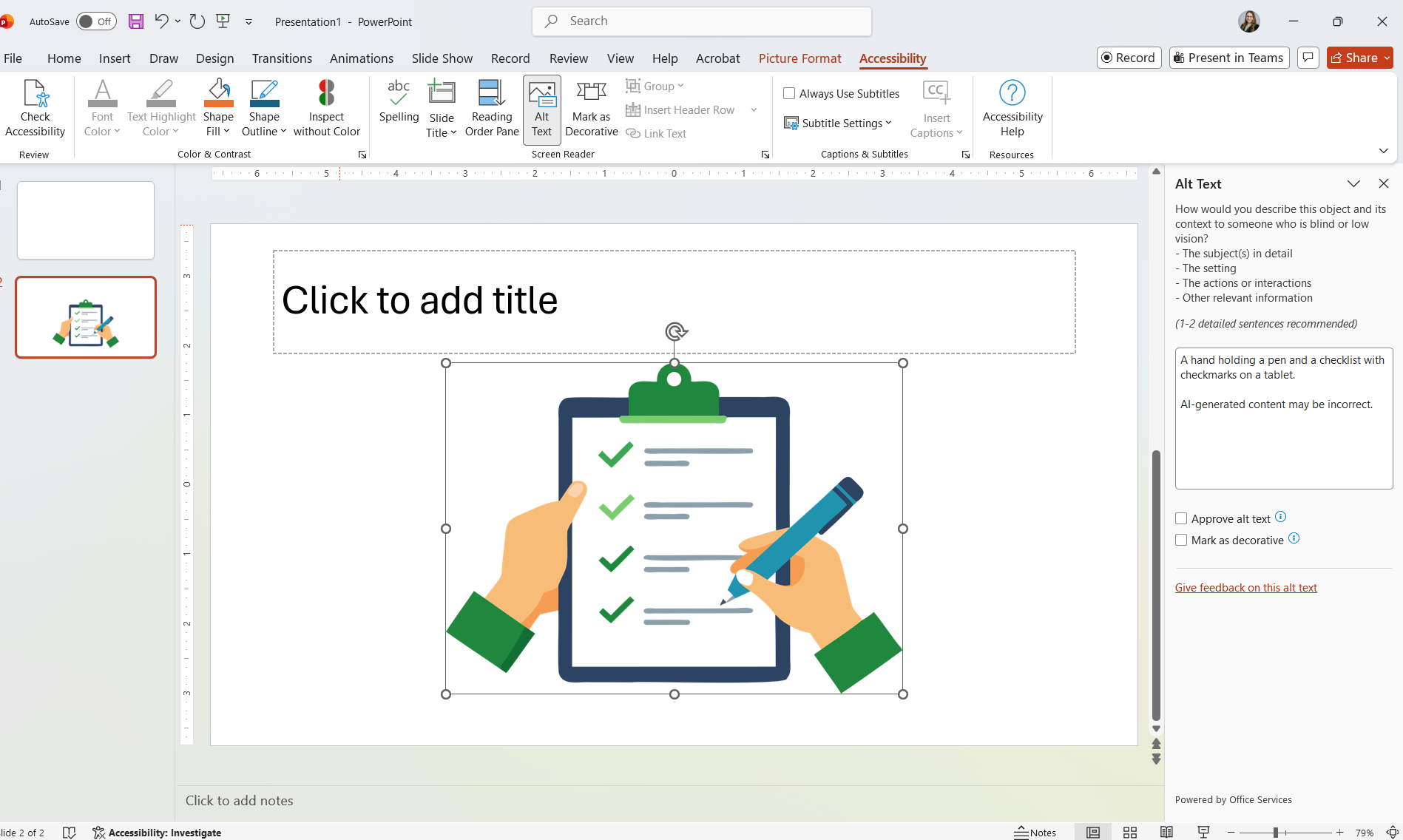
  1. Right click on the image and a popup menu will appear.
  2. Select Edit Alt Text. need this image, not just the menu, but what does it look like on the screen.

Need instructions after Edit Alt Text is selected and an image of what the PC screen looks like to add alt text. See Mac instructions. These should be similar.

Best Practices

FAQ

Need assistance?

Contact the College of Medicine Digital Accessibility Team if you have questions or need one-on-one support or additional training.

Contact the Digital Accessibility Team

Keep Learning