Login to UWorld
Faculty will access the UWorld Learning Platform where you can create, preview, edit, share assignment codes, duplicate, and delete/withdraw assignments.
Need access?
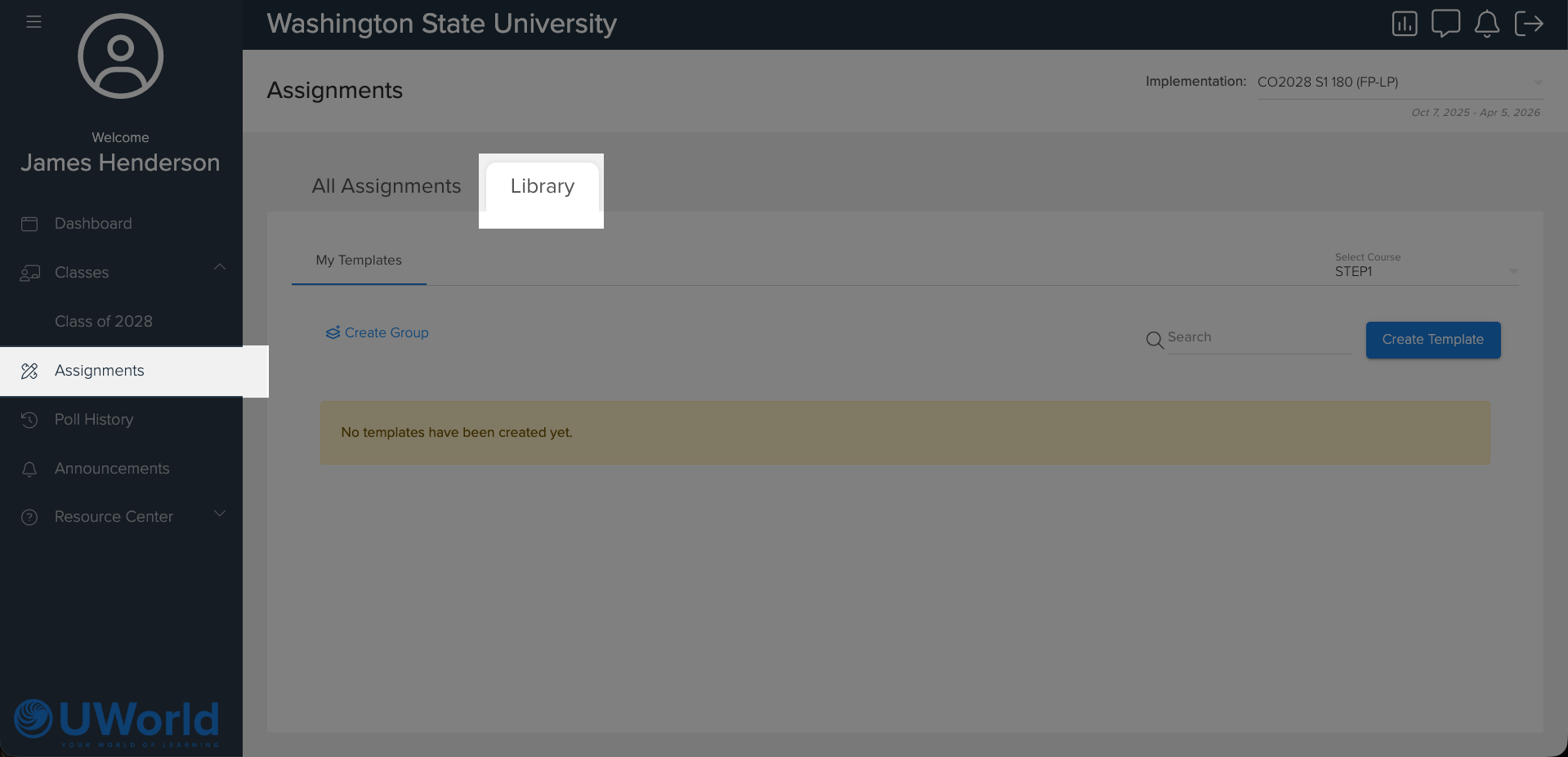
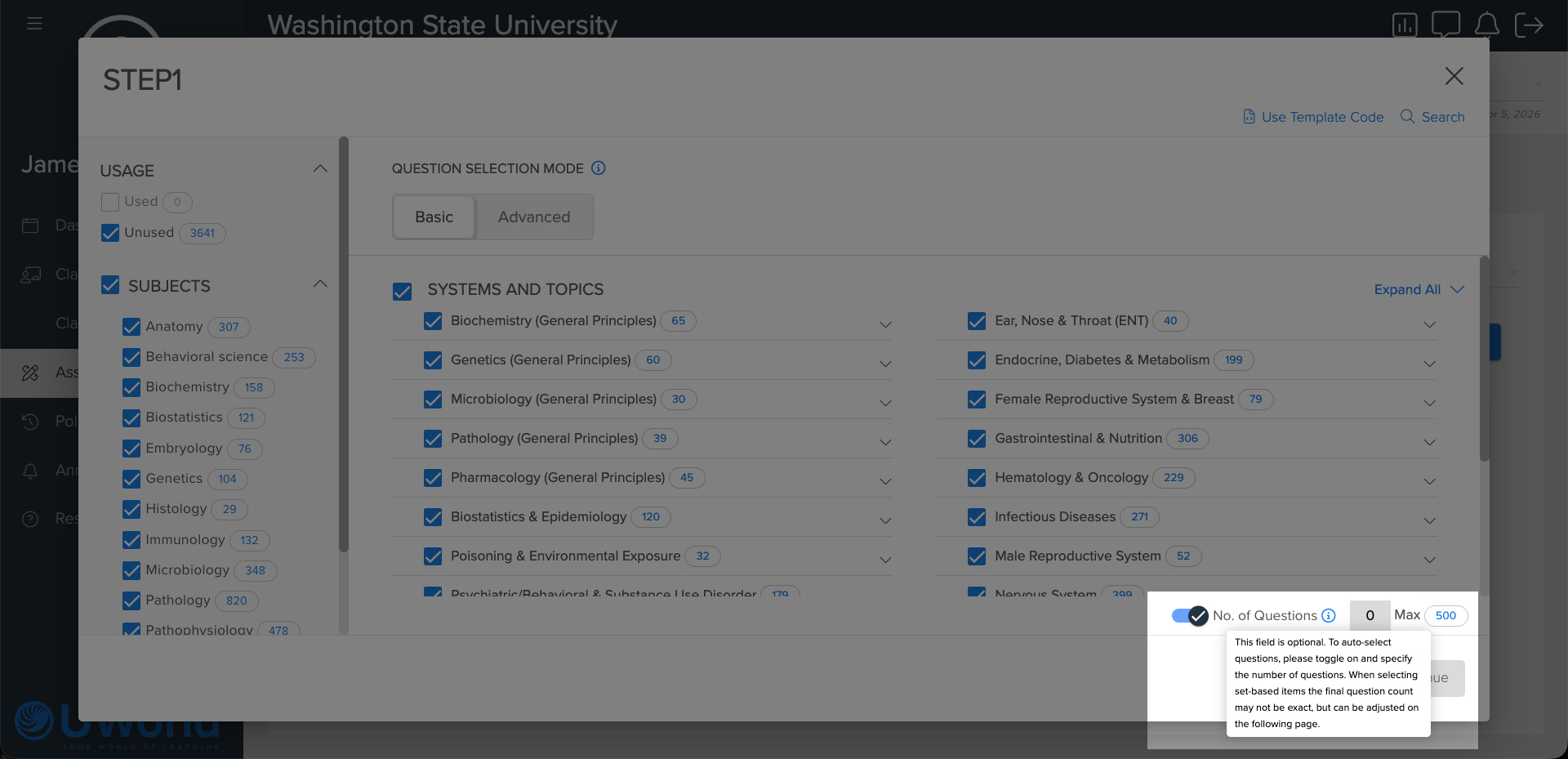
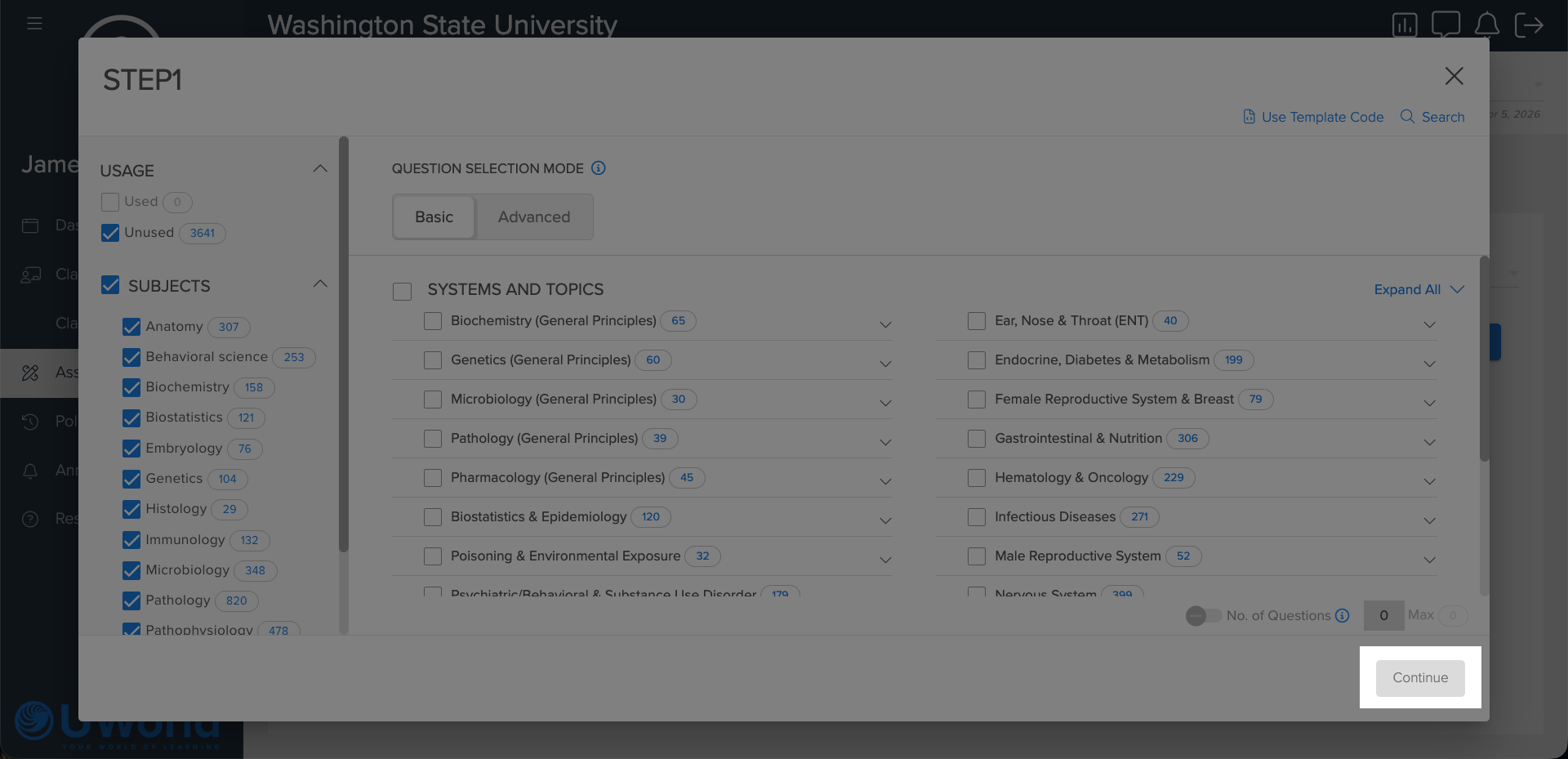
Navigate the Question Bank
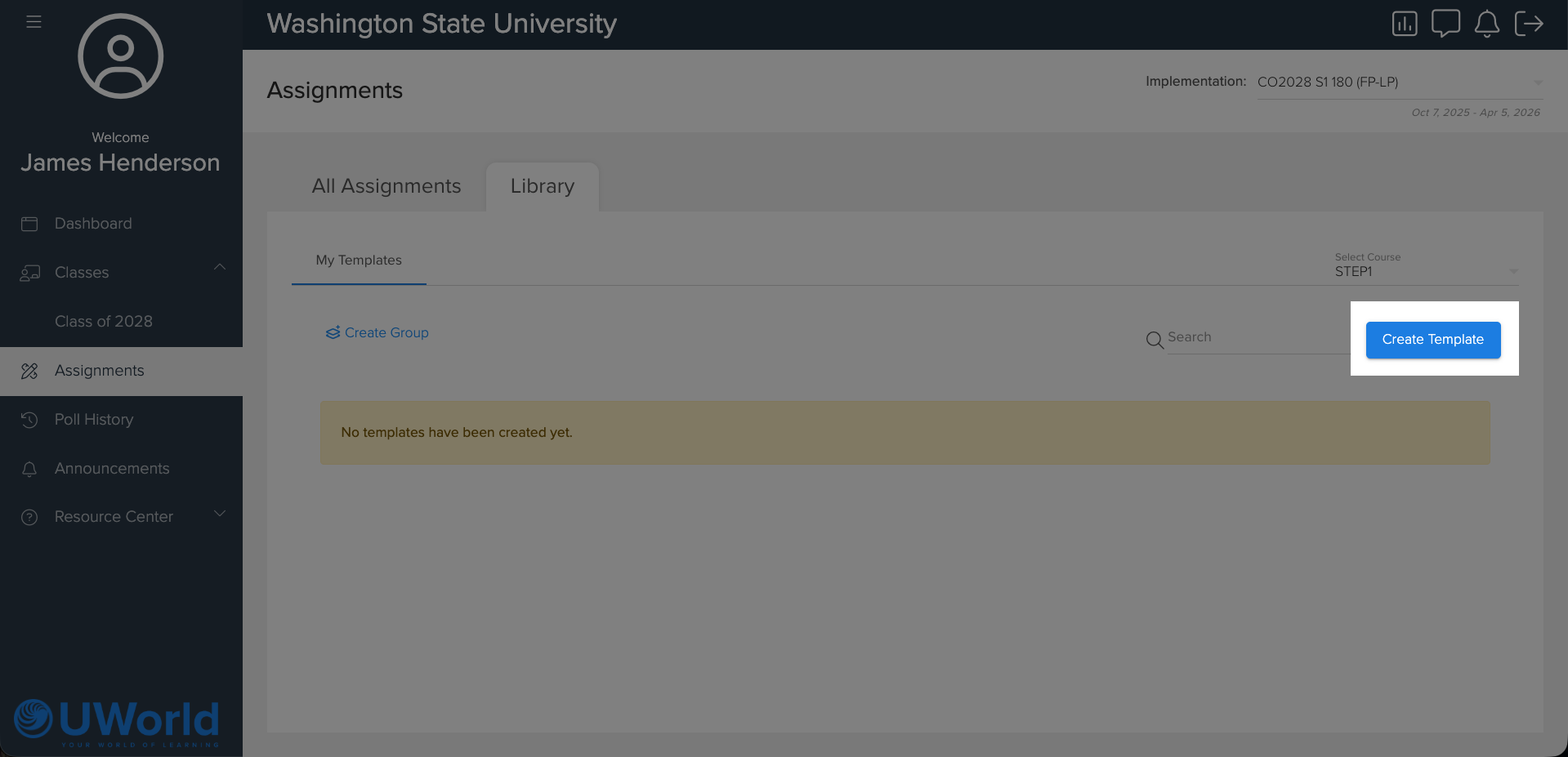
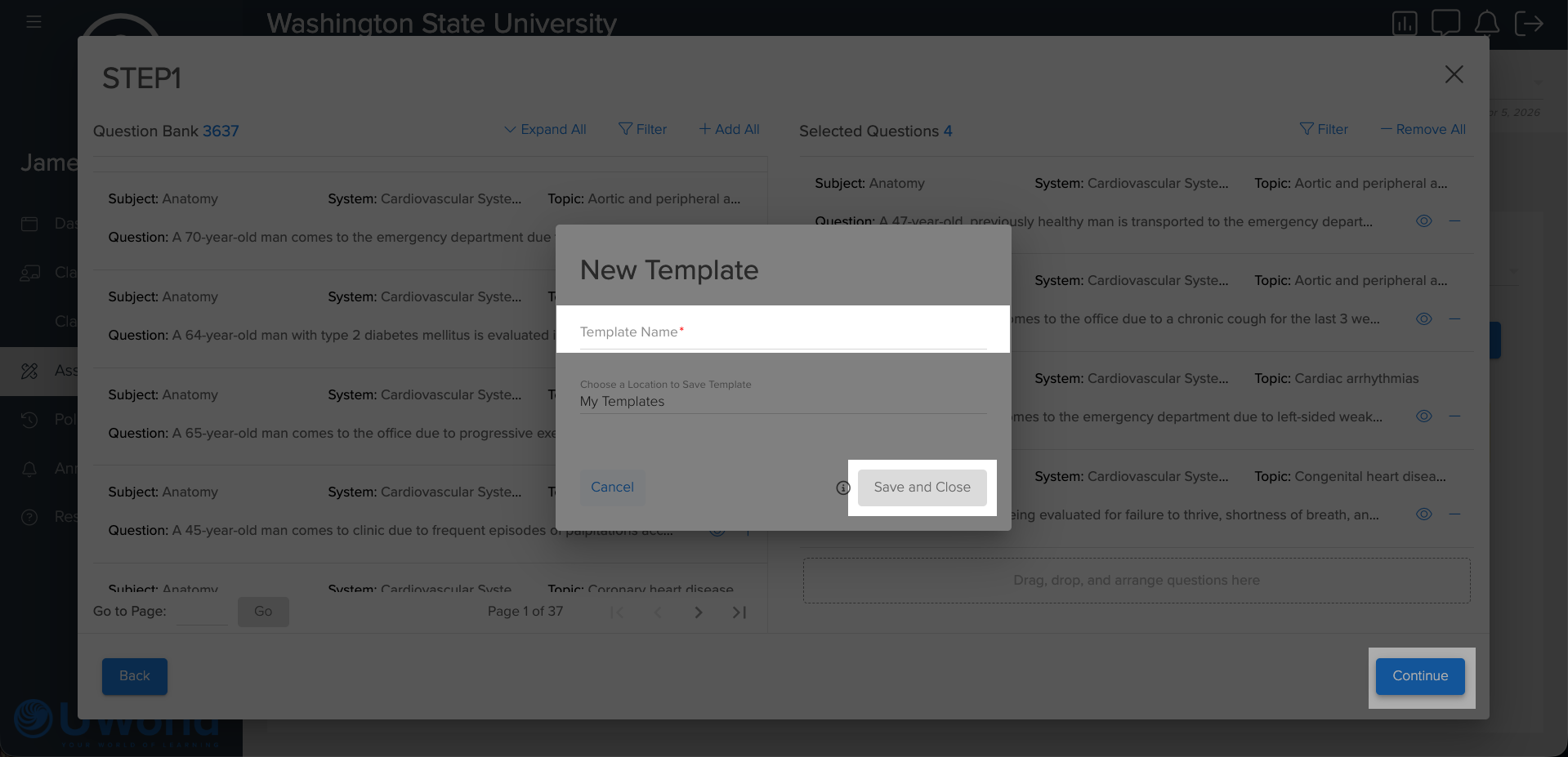
Templates are the easiest way to view questions as a faculty member.
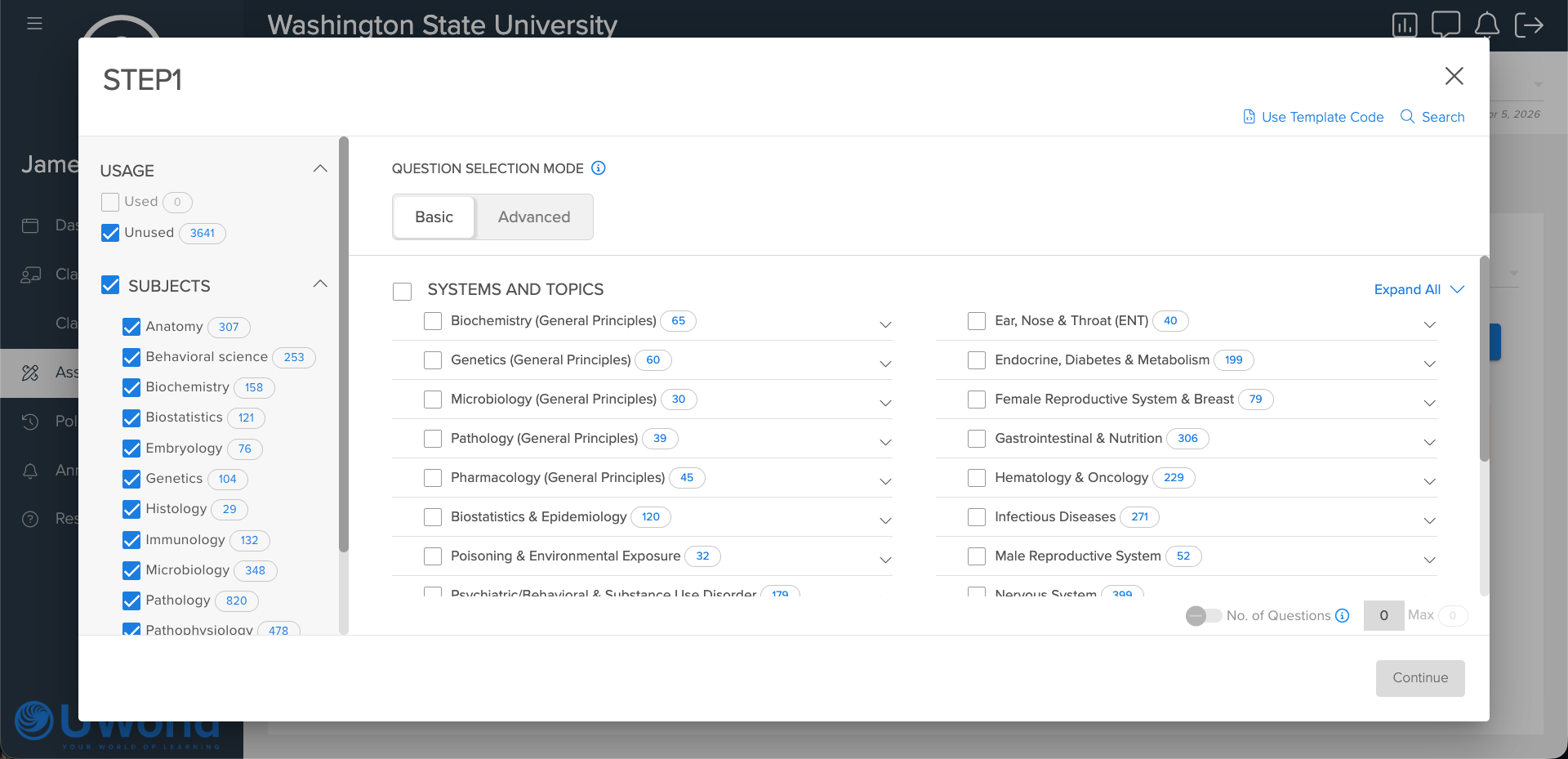
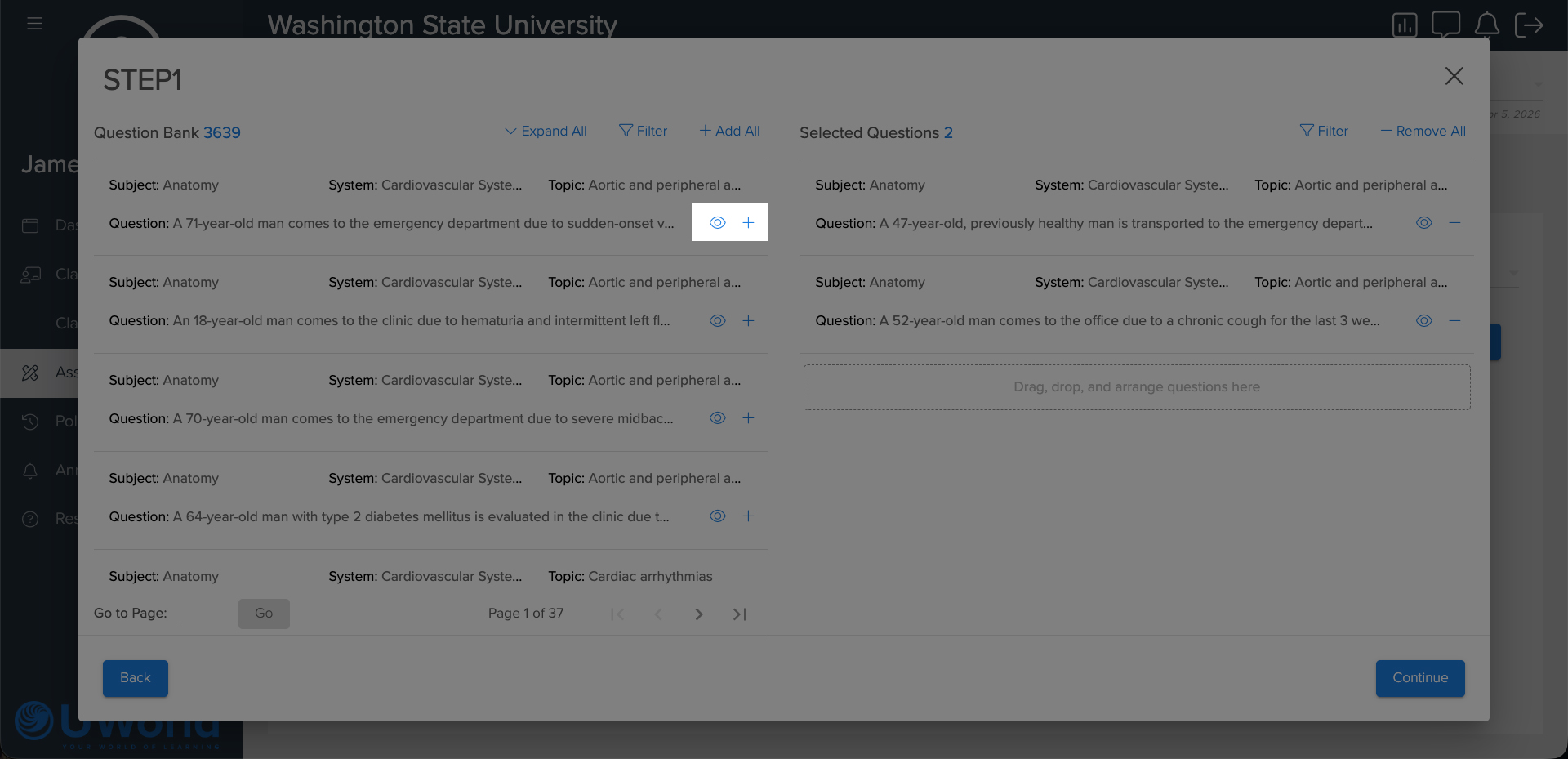
Add Questions to Your Template
There are two ways to add questions to your template.
Add the Question Without Review
Preview the Question Before Adding
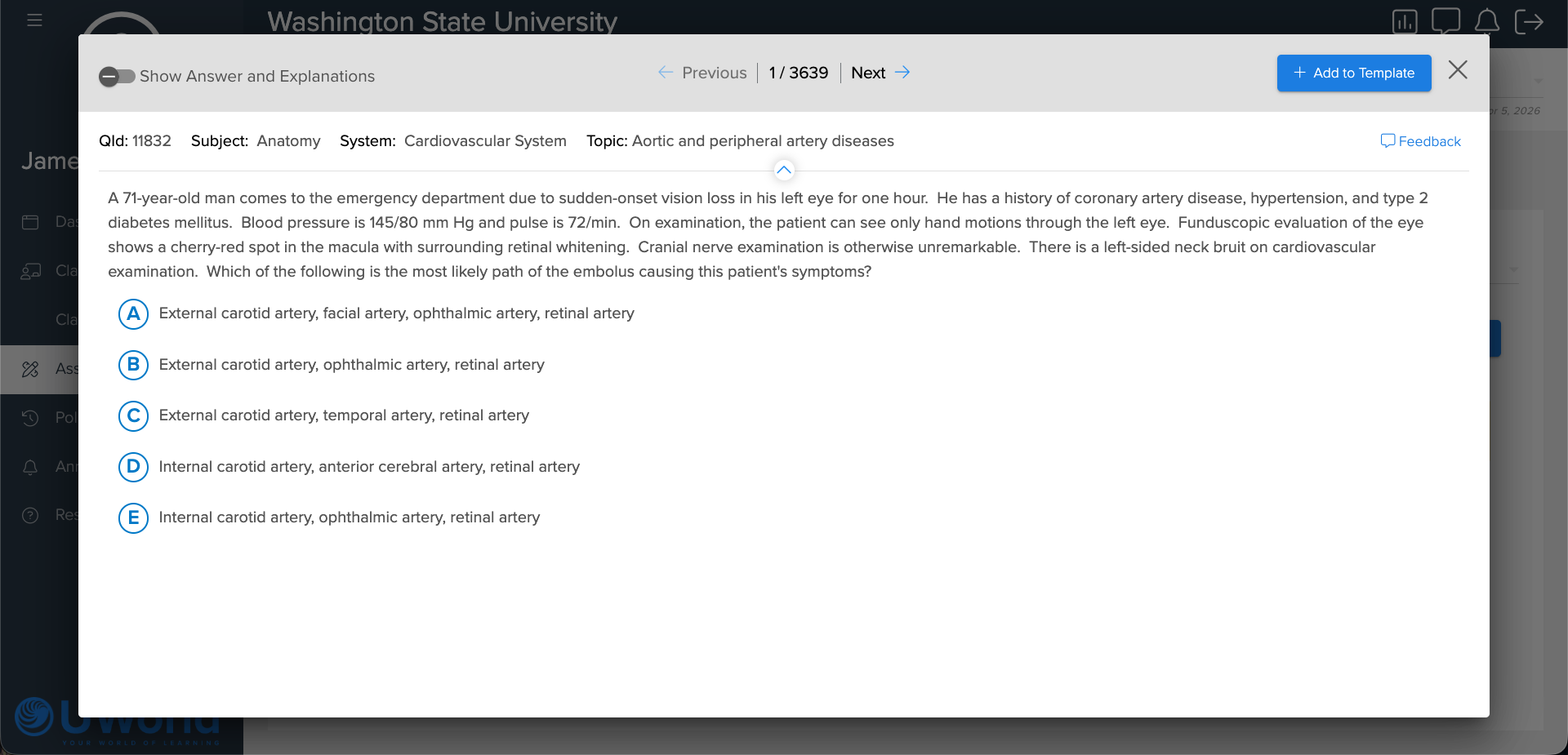
Preview questions by clicking the Eye icon.
Add to Template button Click the Add to Template button in the upper-right corner to add the question.
Next and Previous buttons
Click the Next button or Previous button to move through the available questions.
Close icon
The Close icon returns you to the previous list of all questions.
Show Answers and Explanations
When previewing questions, your view is the same as students would see it during an exam.
Toggle on the Show answer and Explanations slider in the upper-left corner to see the correct answer, the explanation, and the educational objective.
Saved Templates
- After a template is created, click the Eye icon to preview it.
- Click the Pencil icon to edit the template.
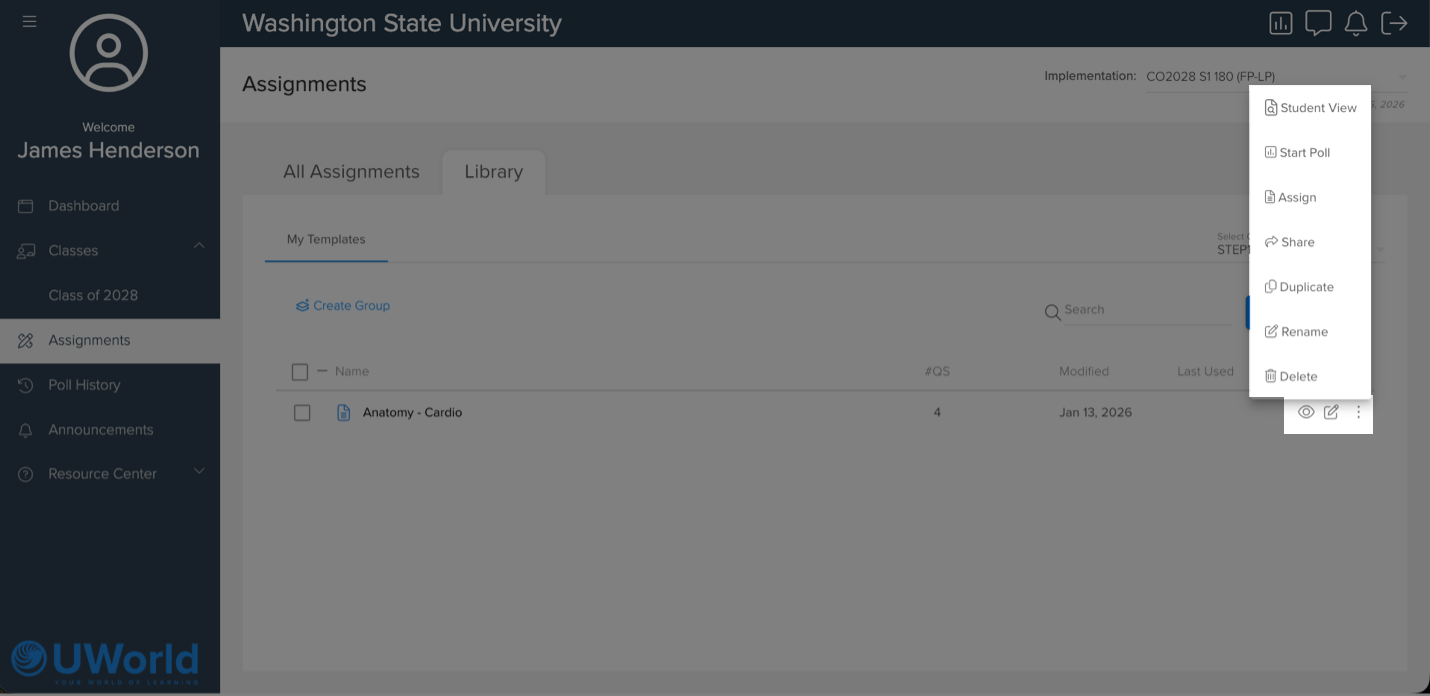
- For more options, such as deleting a template, click the Vertical ellipsis menu icon to open the menu for options that include:
- Student view.
- Start poll.
- Assign.
- Share.
- Duplicate.
- Rename.
- Delete.