
The Academic Operations Library provides access for directors to relevant CBL cases. We look forward to your expert feedback on these cases (designed to apply and reinforce the curricular content you teach in the classroom).
Access the Files
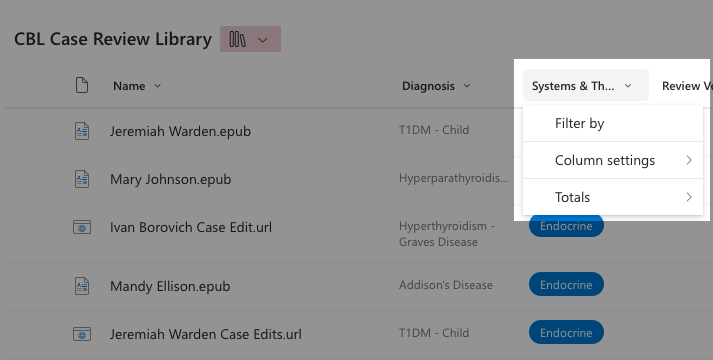
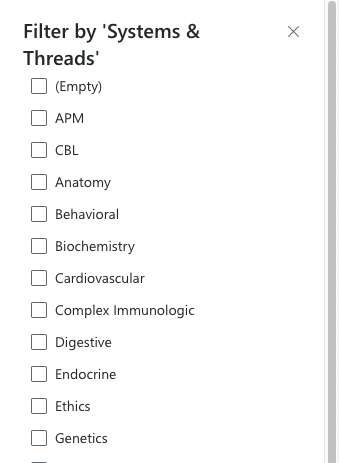
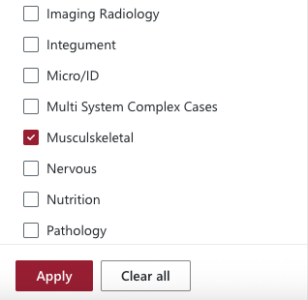
Find your cases for review by filtering this library according to your system or thread title.
We publish our Case-Based Learning (CBL) cases in an epub format (short for electronic publication). Our CBL cases look and function best on Macs or iPads using Apple Books.
Best Practices
Instructions for how to use these best practices are below.
Use Apple Computer Only
Download the case ePub to your Apple computer and open the Case edits file. You'll have two windows open on your desktop.
Use an iPad and Apple Computer
If you have an iPad, download the case ePub to your iPad and open the Case edit file on your computer.
Use an iPad only
This is not recommended! The two windows that need to be open on the iPad will make it difficult to type your changes and look at the case ePub.
Download CBL ePubs
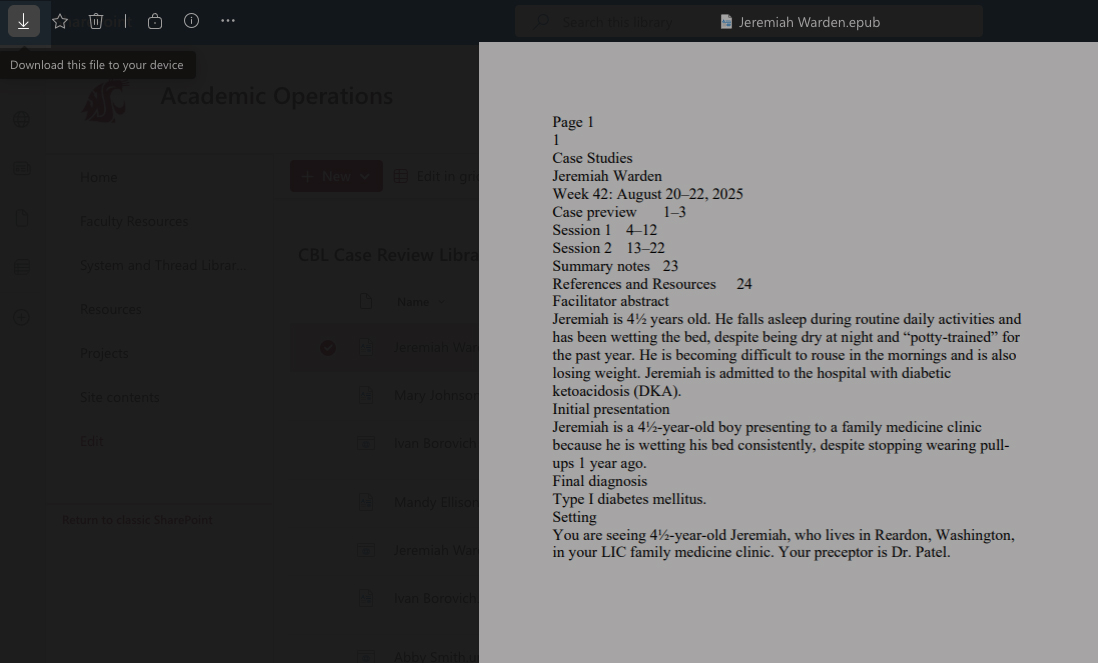
The instructions for downloading the ePub files are the same for Mac computers and iPads . Where they deviate is noted in the instructions below. If you need to see the images in these instructions clearly, tap on the image to enlarge it.
- Go to the Academic Operations Pre-clerkship System and Thread Library.
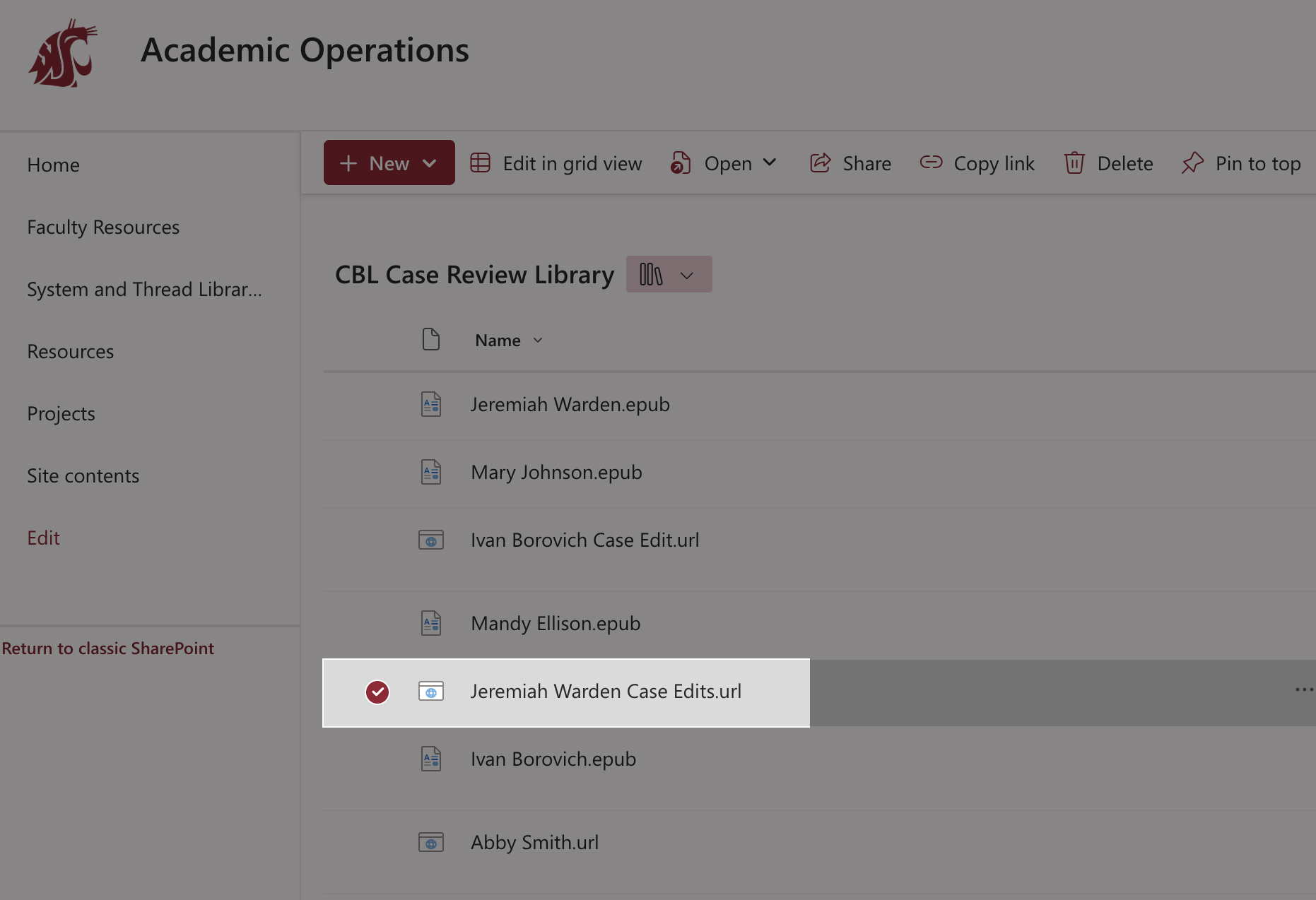
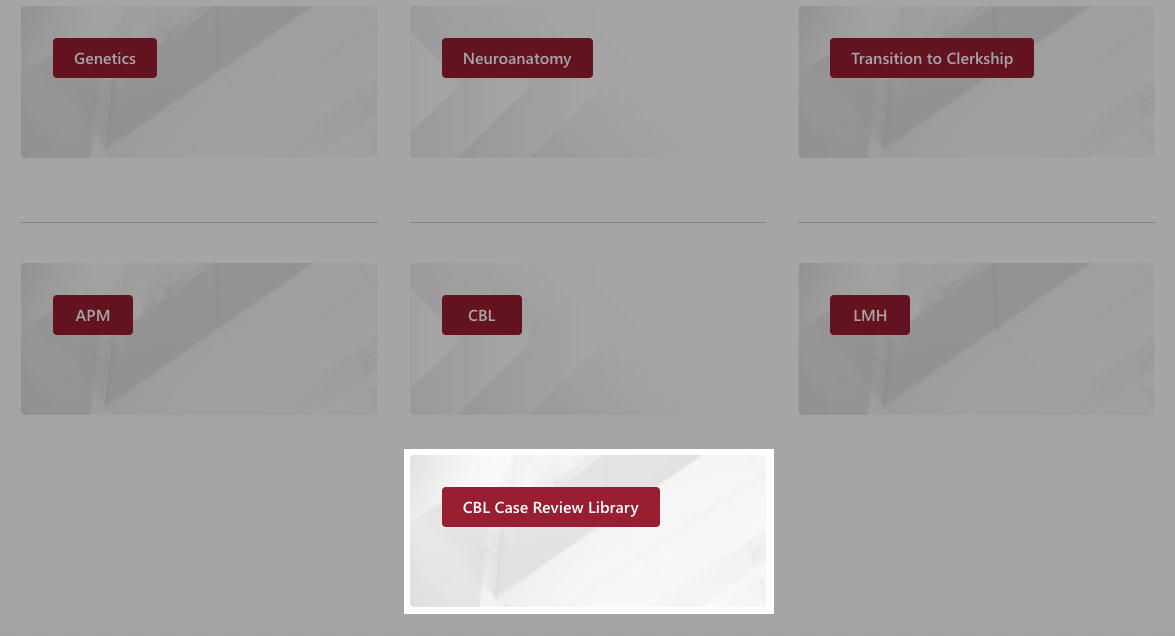
- Scroll down to the bottom of the page. You’ll see the CBL Case Review Library.
Open the Downloaded ePub File
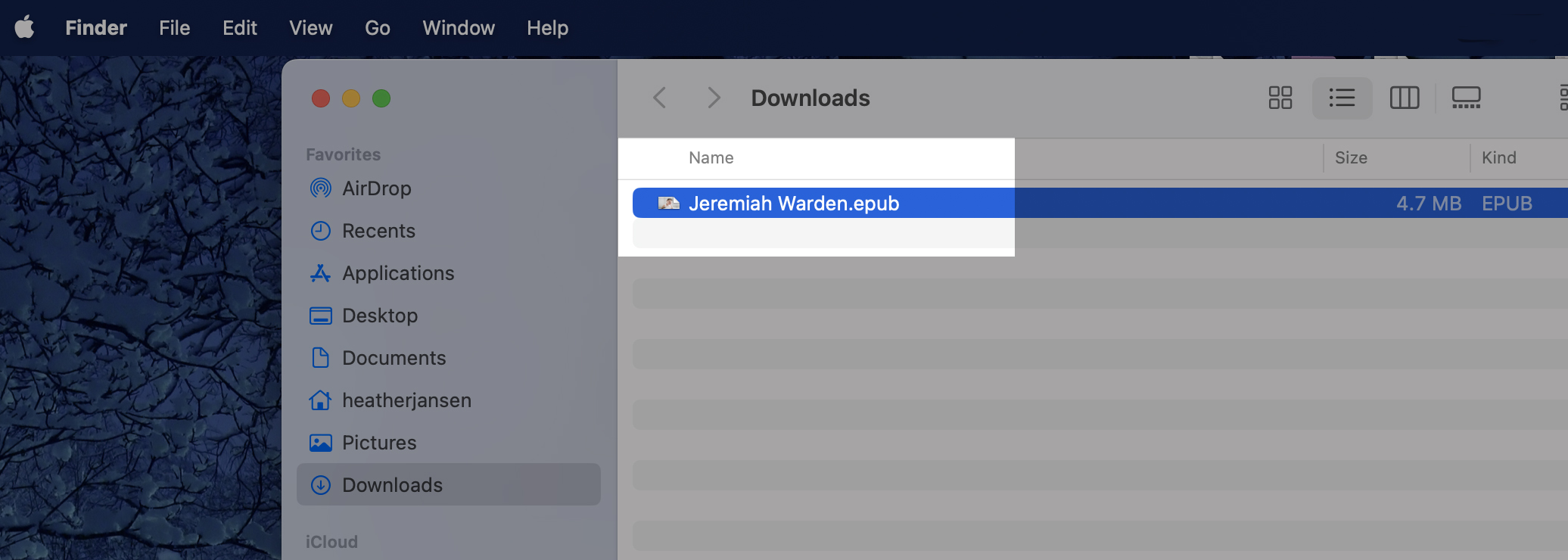
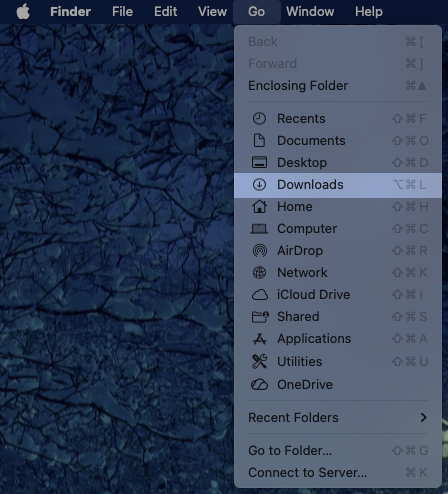
In the Upper-left Navigation bar, tap on Go. In the Dropdown menu, tap on the Downloads folder to access the downloaded ePub file.
- In the Download folder, double-click the ePub file that you want to review. The file will automatically open in the Books app

. You must click on the Case file to open it and have it show up in the Books App

.
Open the CBL Edit Document
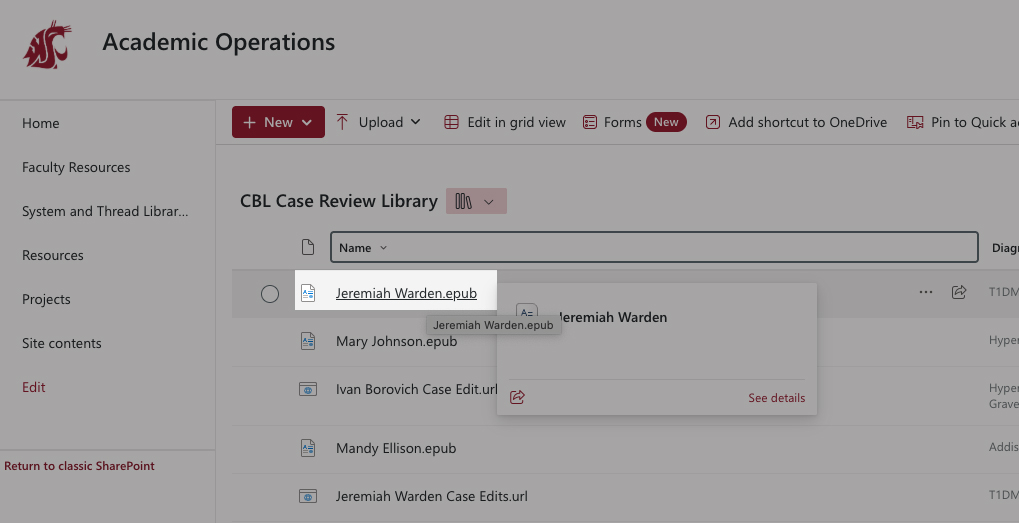
Every CBL case has an associated Word document (with the same patient’s name in the title) for recording recommended edits. In the CBL Case Review Library, double click on the Patient name case edits file. This will open the edits file in Word online. Do not download this file.
Add Your Edits
When you open the Word document , don’t be surprised to see edits there already. You’re in the right place! This same document is used by CBL facilitators who recommend edits based on student feedback and real-time experience of the case. Other thread directors may be asked to contribute edits, as well.
When you get to a page in the case file where you recommend edits, please indicate that page in the document and what should change (see the examples).
Examples
p. 20, text, 2nd paragraph, 1st sentence, change text to: She had a high fever, lacy rash, and decreased level of consciousness.
Please do not add quote marks unless it is a direct quote.
If you want us to ask a new student question (SQ), please always include a facilitator note (fac note) which answers the question, like this:
- p. 7 – Add SQ1: What is the name of the anatomic area ventral to the elbow?
Fac note 1: Antecubital fossa.
Please feel free to add content (including images) directly from your sessions to the case edits file. Students enjoy when content they have seen before is reinforced. It helps them apply what they’ve learned to a simulated patient.
Please provide a source for the image as well.
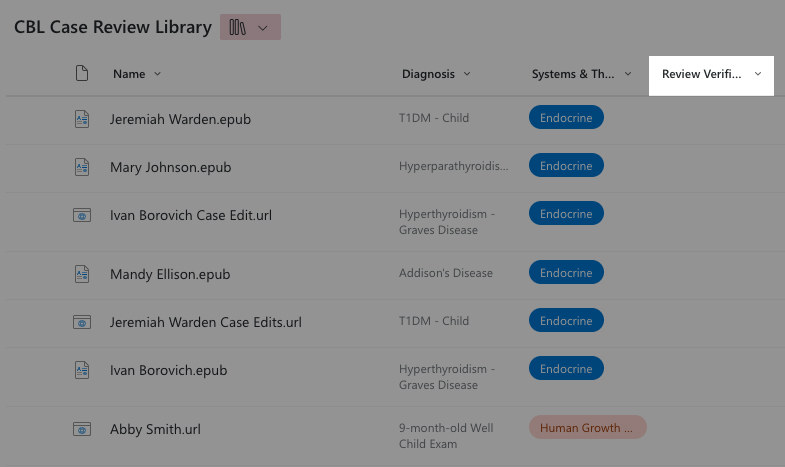
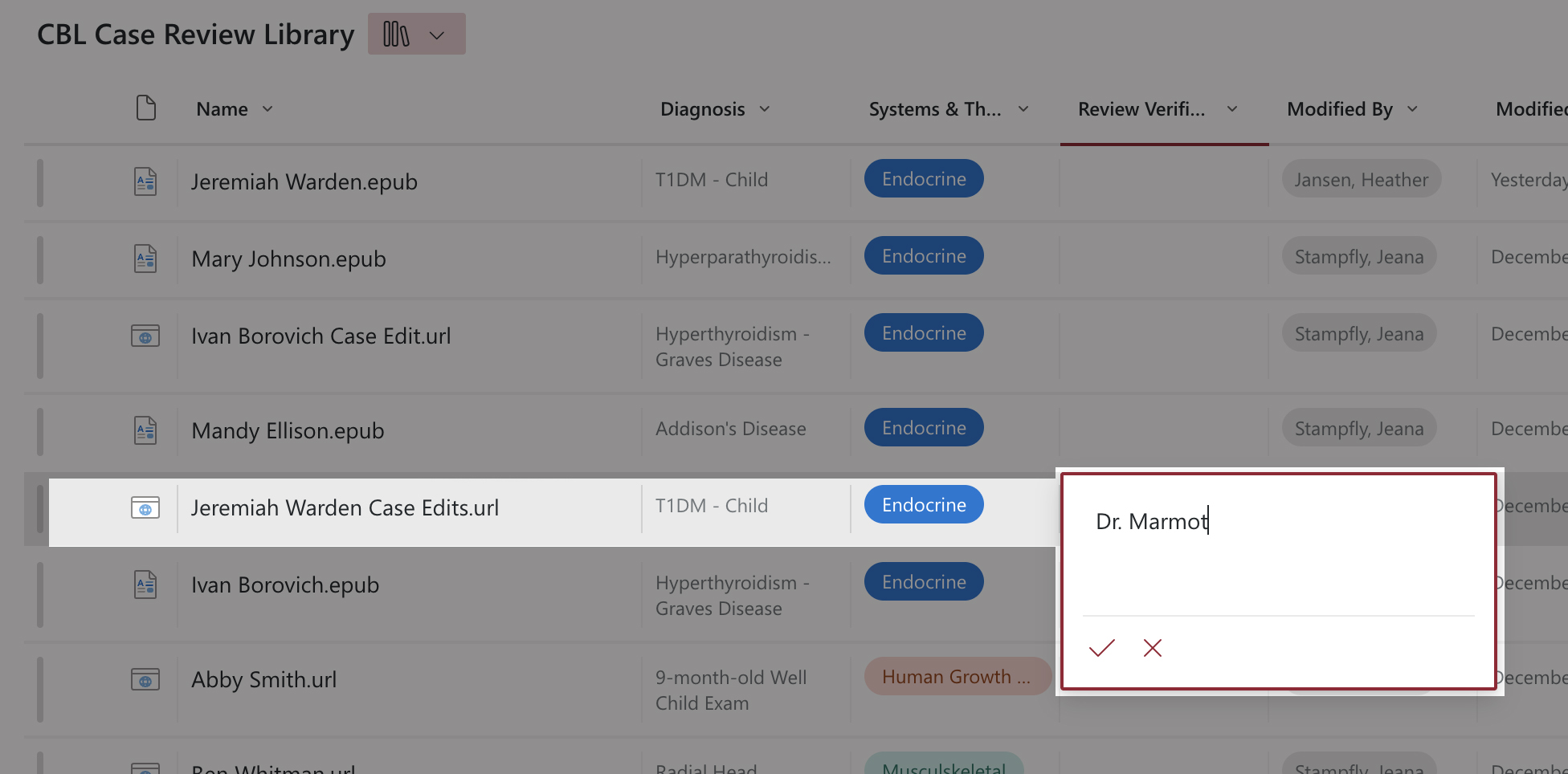
If you feel that something about the patient story is unrealistic, and you have a broad recommendation for altering the patient story, please add your recommended change to the top of the Case Edits Word document , and add your Name to the Review Verification column, so we can contact you directly for help with understanding how to make your suggested improvement to the case.
When You are Finished Editing
The edit documents (Word documents ) save automatically, so when you are finished, simply close the file.
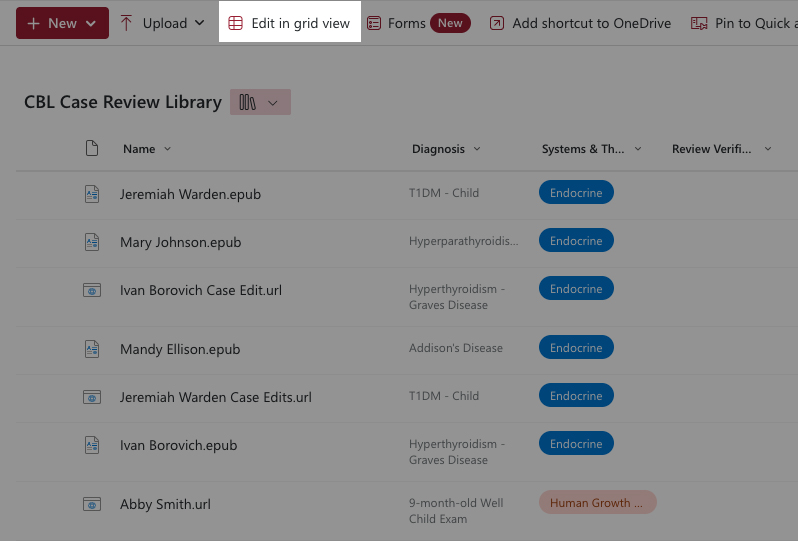
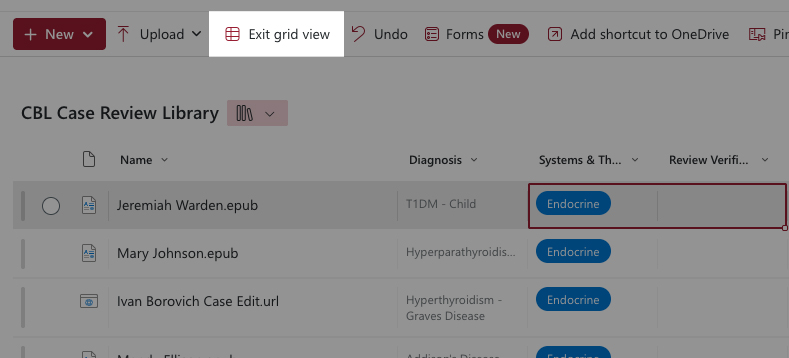
Then go to the CBL Case Review Library, and add your name to the Review Verification column. This tells us that you are finished editing this case.
FAQ
The cases were designed to be viewed on an iPad using the Books app
. They are best viewed on an Apple device.
The Curriculum Team can loan you an iPad on the Spokane campus in two-week intervals.
To request an iPad loan, email medicine.curriculum@wsu.edu.
The Curriculum Team can loan you an iPad on the Spokane campus in two-week intervals. To request an iPad loan, email medicine.curriculum@wsu.edu.
Oops! You missed a step.
When you click on the file in the CBL Case Review Library and the Word document opens, click Download arrow in the Top-left corner of the Preview tab.
The Word document is only a preview, not the file.
Technically, you can.
However, we don’t recommend it. The ePub file is interactive. Printing the file removes the text and images in pop-ups, hyperlinks, and interactivity that are integral to the case.
We recommend that you view the case digitally on an iPad or Apple computer.
First,
- If you downloaded the file to your Apple computer, check your Downloads folder.
- If you downloaded the file to your iPad , check the Files app.
- Do a search with the patient name that is in the file.
Once you find the file, double-click or tap on the file to open it in the Books app.
If you already opened the file, but can’t find it, go to the Books app and click Library All. This will show you the cases downloaded onto your device that you have previously opened.
You can also search for the patient’s name at the top of the menu.